
How to Export Final Report and Archive an Assessment
In this guide, you will learn:
- How to export a final report
- How to archive an assessment
How to Export Final Report
Who has access:
- Clinical Staff only
Steps:
- Open the “Documents” tab on the patient page.
- Select the assessment form you want to export.
- Click the “Export” button.
- You can manually download the report by clicking the Download button.
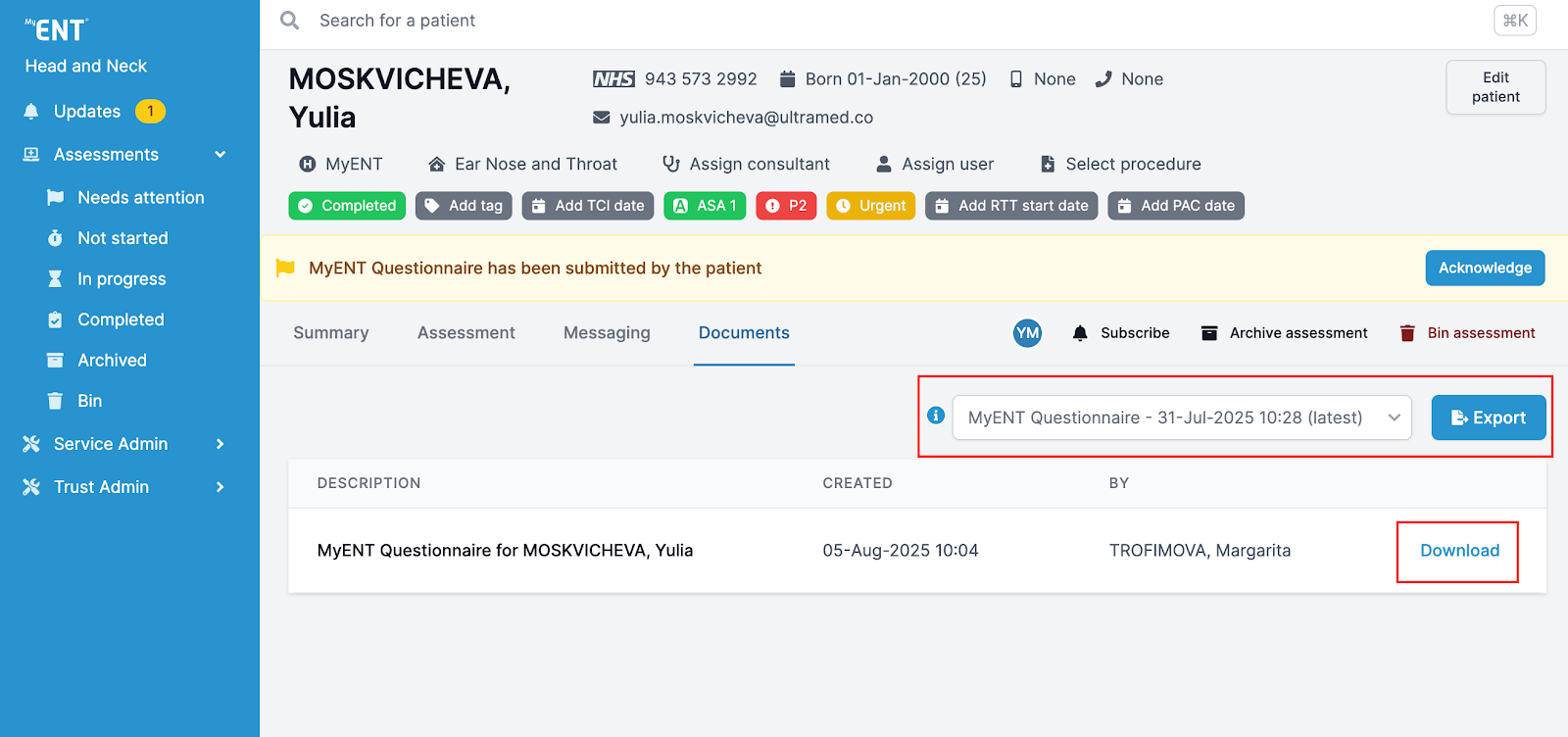
- You can only export and download the report if the assessment has been submitted.
- If your organisation has integration with internal systems, the report may be saved automatically without manual download.
How to Archive an Assessment
Who has access:
- All users with secondary archiver access
Steps:
- Find the patient using the Search bar or locate them in the ‘Completed’ folder.
- Click on the patient’s name to open their details.
- Ensure the assessment is submitted and is in the ‘Completed’ folder.
- Click the “Archive assessment” button on the right-hand side.
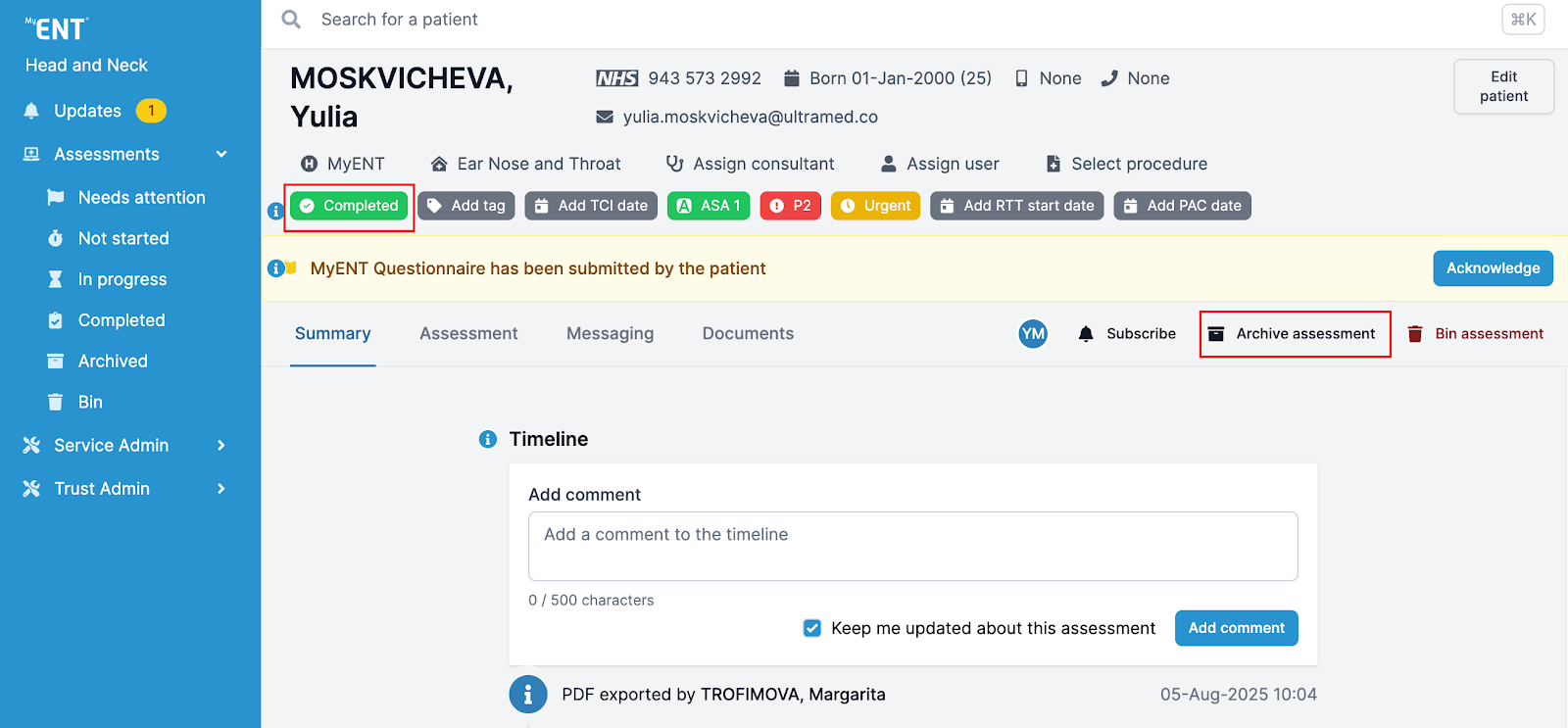
5. Confirm your choice in the pop-up window.
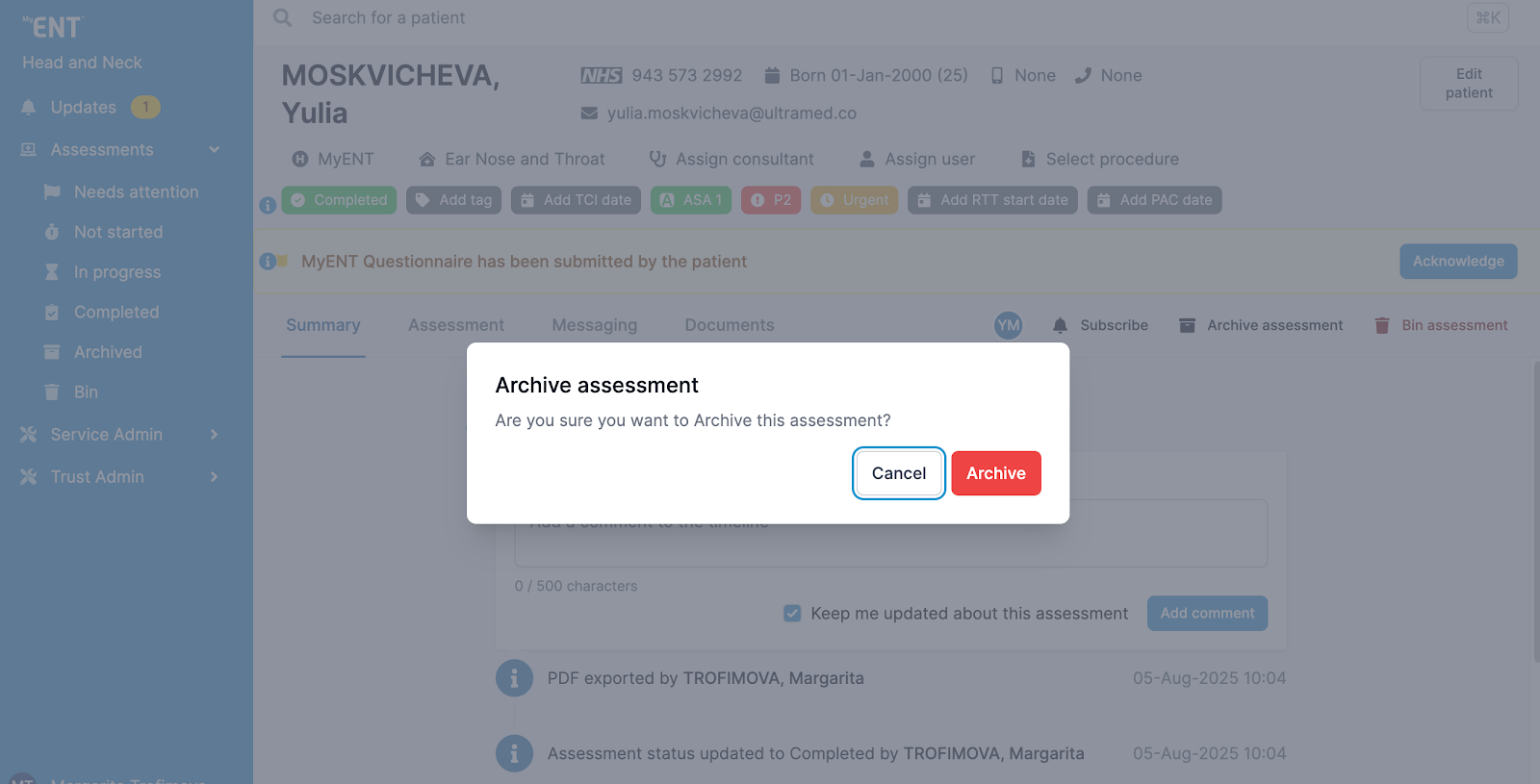
The assessment will be moved to the ‘Archived’ folder, where it remains available for viewing.
How to Unarchive an Assessment
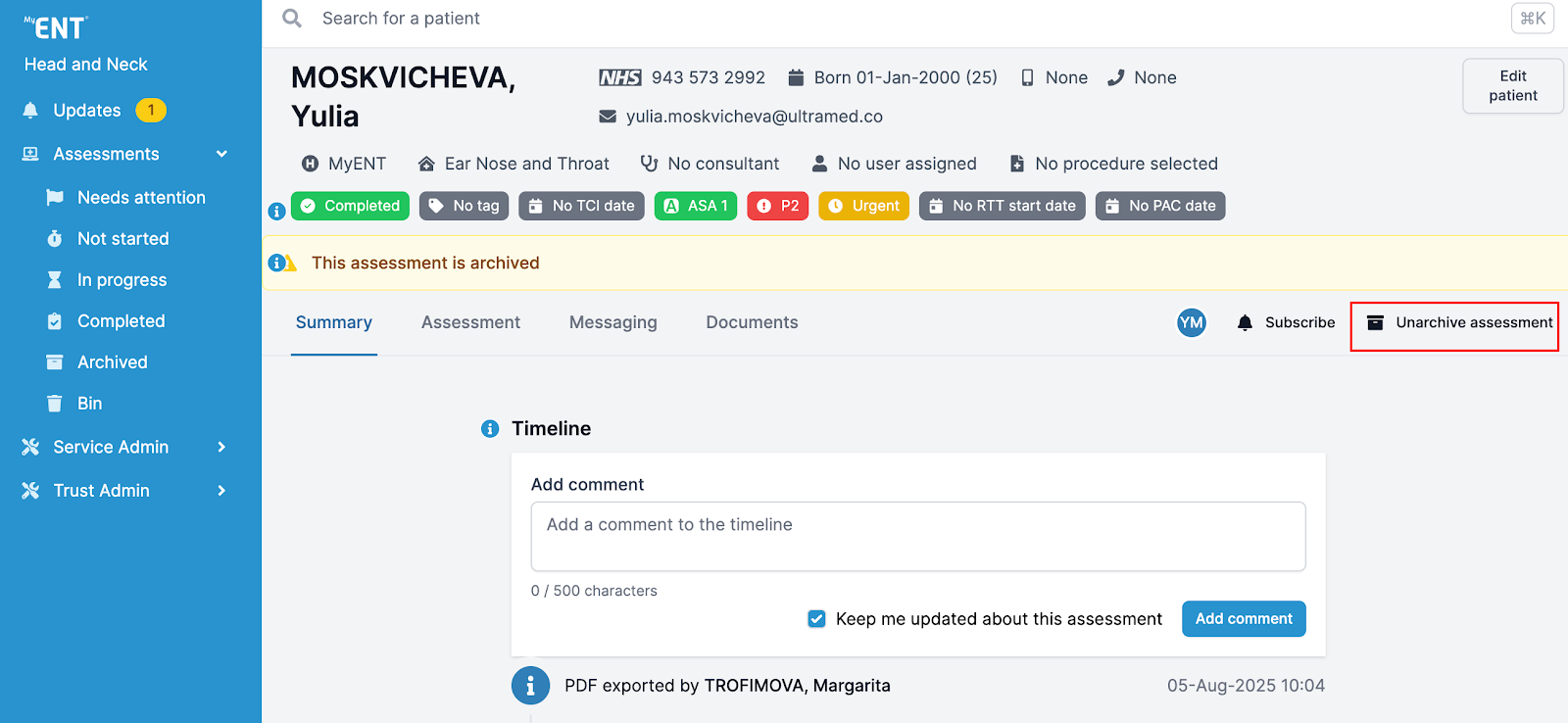
- To unarchive an assessment, open the patient in the ‘Archived’ folder.
- Click the “Unarchive” button.
- The assessment will return to the ‘Completed’ folder.
Additional Notes
- If you do not see the option to archive an assessment, your account may lack the required permission.
- Features may look different depending on your organisation’s portal configuration.