
Introduction to the Portal
In this guide, you will learn how to:
- Navigate the dashboard and filter assessments
- Use the left-hand side menu
- Understand how assessments are initiated
Who has access:
All user levels
Dashboard Overview
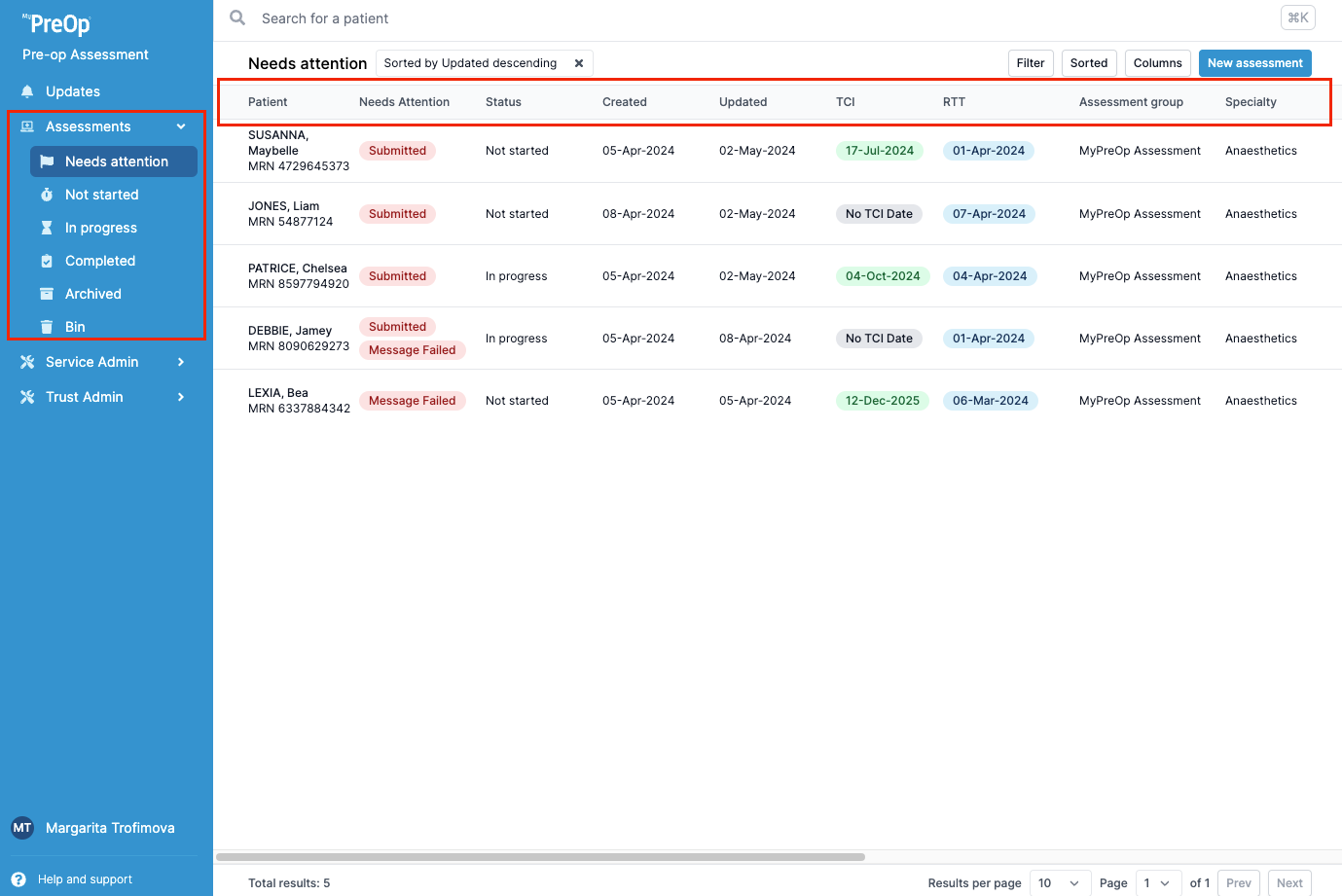
The dashboard provides a comprehensive view of patient assessments. You can view the following information:
- Patient Details – Patient names and unique identifiers
- Needs Attention – Flags requiring user action
- Status – Indicates which folder the assessment is in
- Date Created – When the assessment was initiated
- Date Updated – Last time the assessment was modified
- TCI Date – “To Come In” date
- RTT Date – Referral to treatment start date (NHS England)
- PAC Date – Pre-assessment clinic date
- Assessment Group – Custom assessment group name
- Specialty – Clinical specialty
- Consultant – Assigned surgical consultant
- User Assigned – Name of the user responsible for the assessment
- Priority – Surgical priority
- Referral Priority – Routine, Urgent, or 2WW
- ASA Grade – ASA classification assigned to the patient
- Tag – Custom status tag
Customising Your Dashboard View
You can personalise your dashboard view by changing, filtering, and sorting the displayed columns.
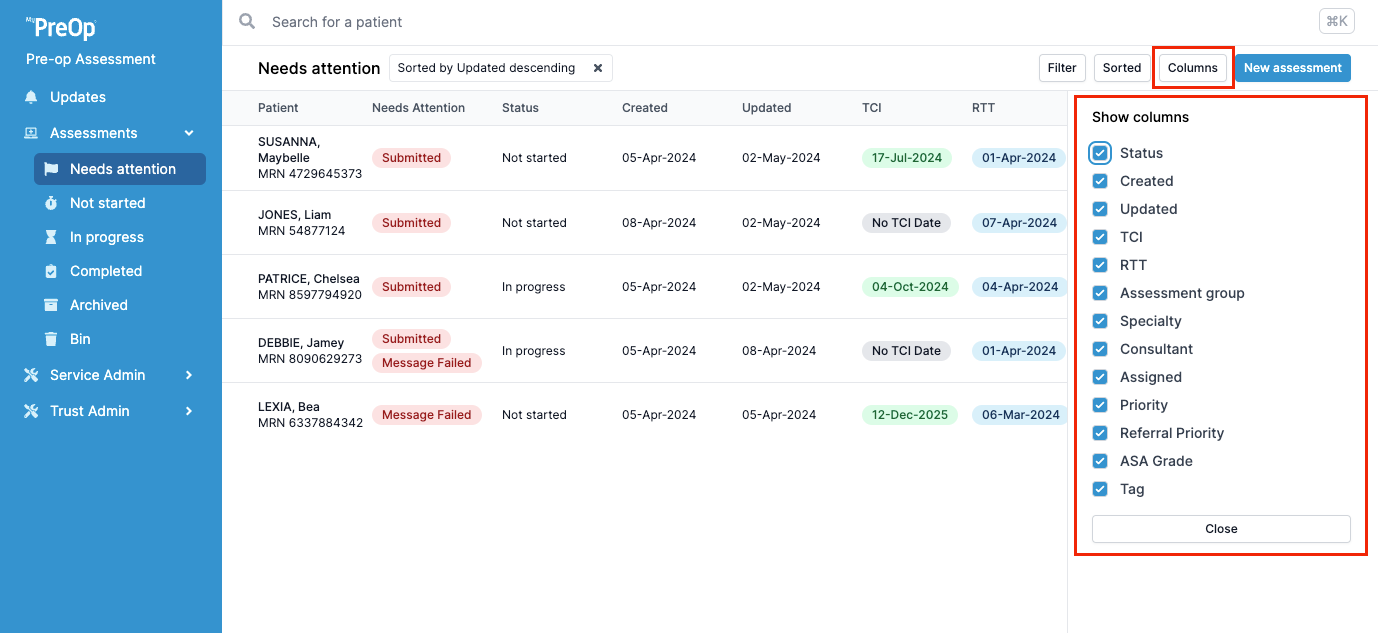
- To select columns:
Click on "Columns" and choose which fields to display.
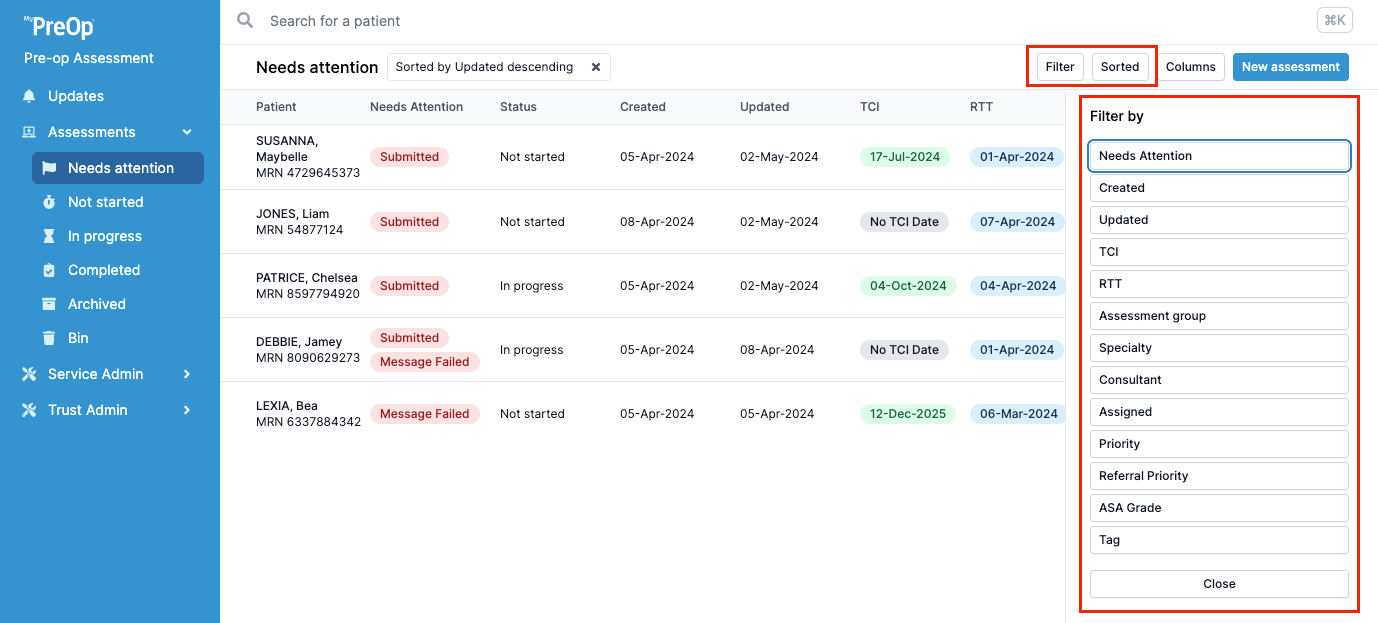
- To filter or sort assessments:
Click on "Filter" or "Sorted", and select the relevant criteria (e.g., Specialty, Consultant, Status).
Note:
Filtering and sorting only apply to your personal dashboard view. Changes are saved automatically and will persist until manually updated. You can adjust your view as often as needed.