
How to Navigate the Patient Page
In this guide, you will learn how to:
- Navigate the patient page
- Understand and acknowledge attention flags
- View the Timeline
- Subscribe to assessment notifications
- Move an assessment to the Bin
Who has access:
All user levels
Navigating the Patient Page
To open a patient’s assessment, simply click on the patient's name from the dashboard or folder list.
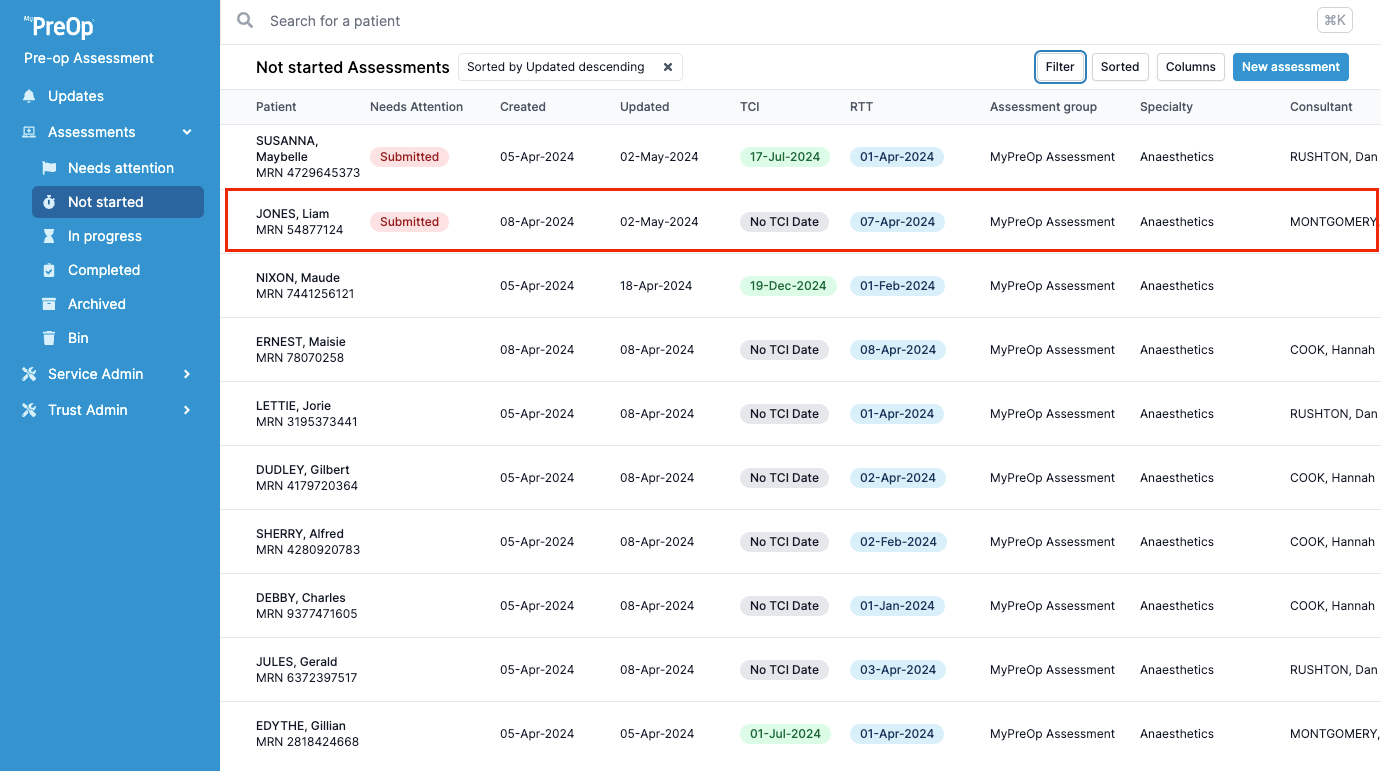
Once the assessment is open, you will be able to view and manage the following information:
- Patient Demographics
- Assessment Group
- Specialty
- Consultant
- User Assigned
- Assessment Folder (can be changed)
- Tags
- TCI Date
- ASA Grade
- Priority
- Referral Priority
- RTT Date
- PAC date
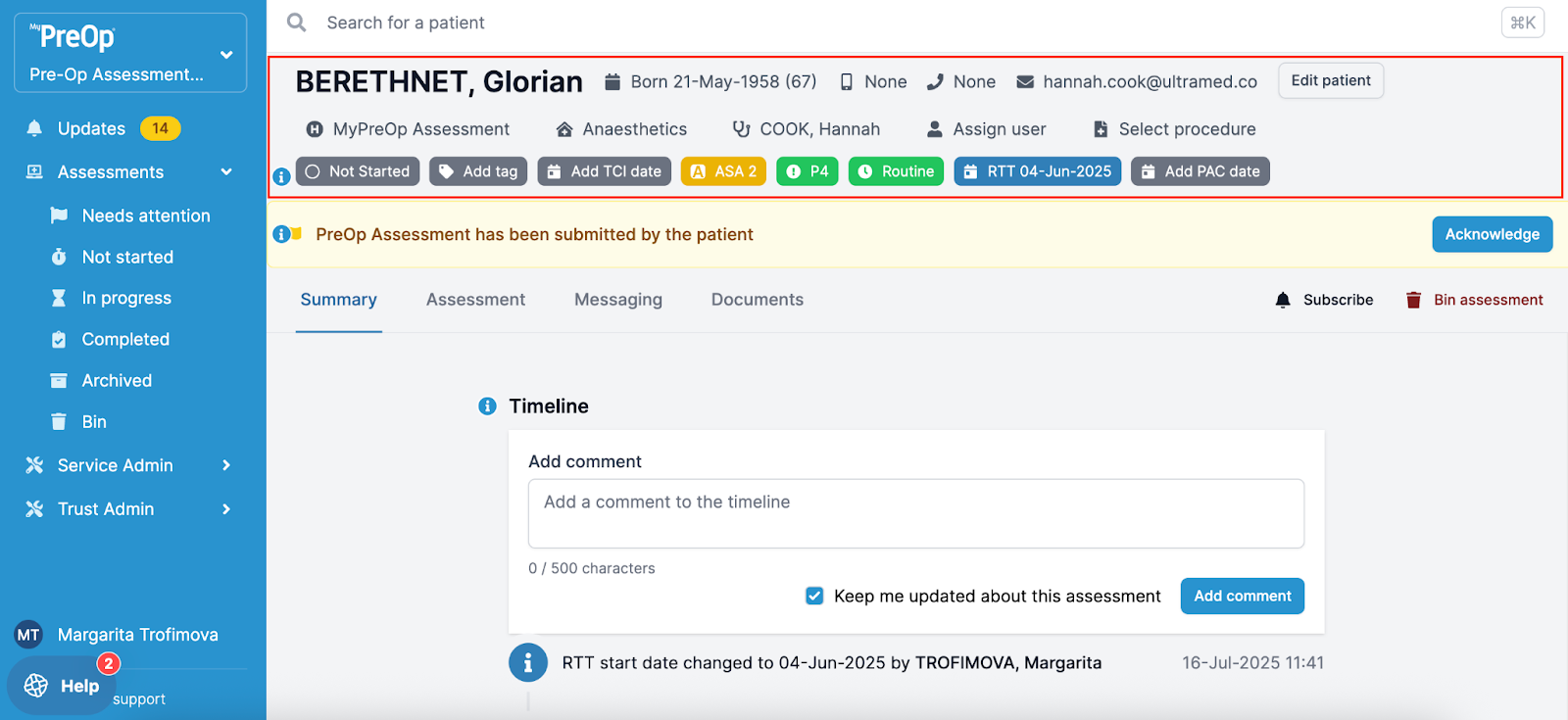
Attention Flags
Who has access:
All user levels
Attention Flags automatically highlight actions that require your attention, helping you prioritise your tasks.
Examples of system-generated flags:
- Submitted - The patient has submitted their assessment
- Message Failed - A message could not be delivered
- Invite Failed - The invitation was not successfully sent
- No Response - Patient did not submit the assessment*
*If you cannot see No Response attention flag, please do not worry, it will be rolled out to your portal soon.
Where the flags appear:
- As red banners in the “Needs Attention” column on the dashboard
- As yellow banners on the patient page
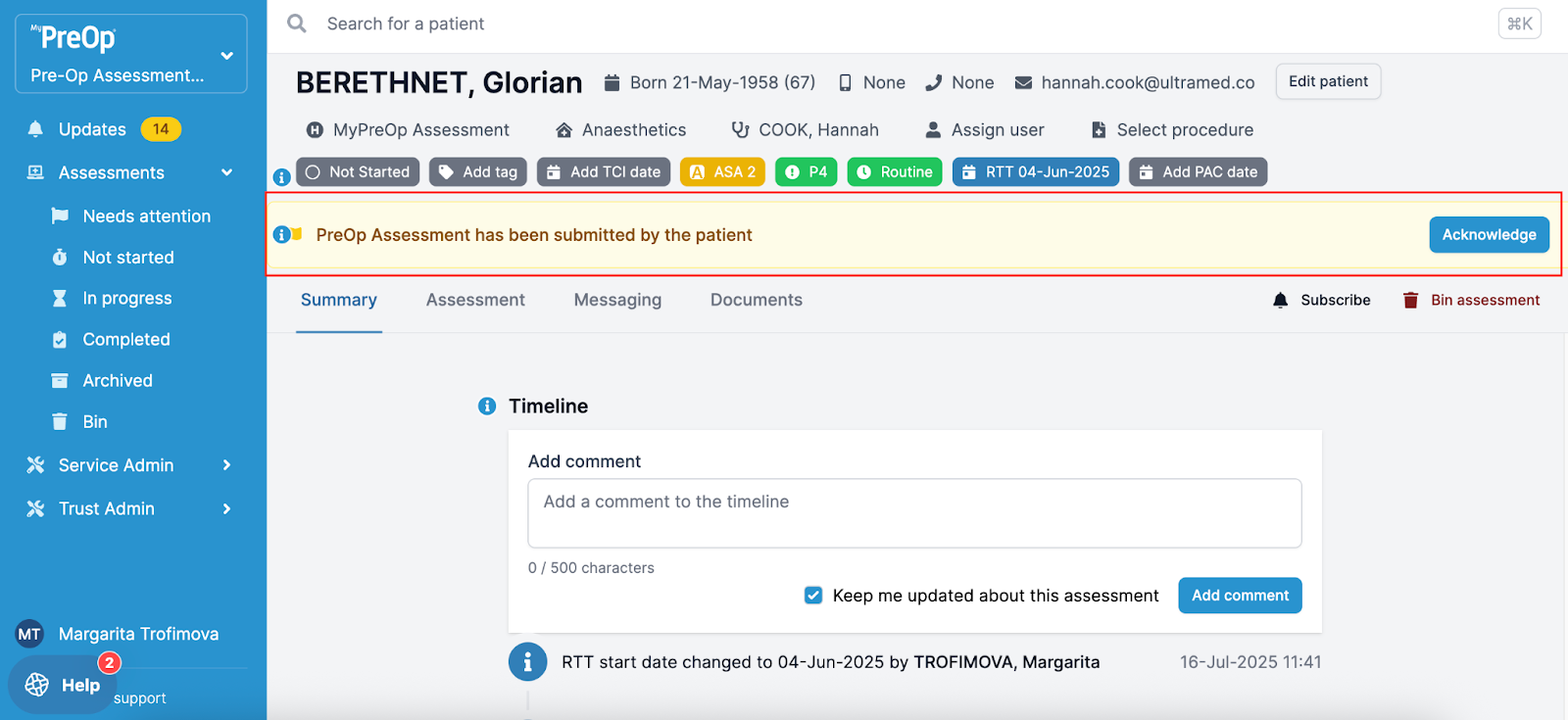
Once you have resolved the flagged issue, click “Acknowledge” on the patient page. This will remove the flag and log your action in the Timeline.
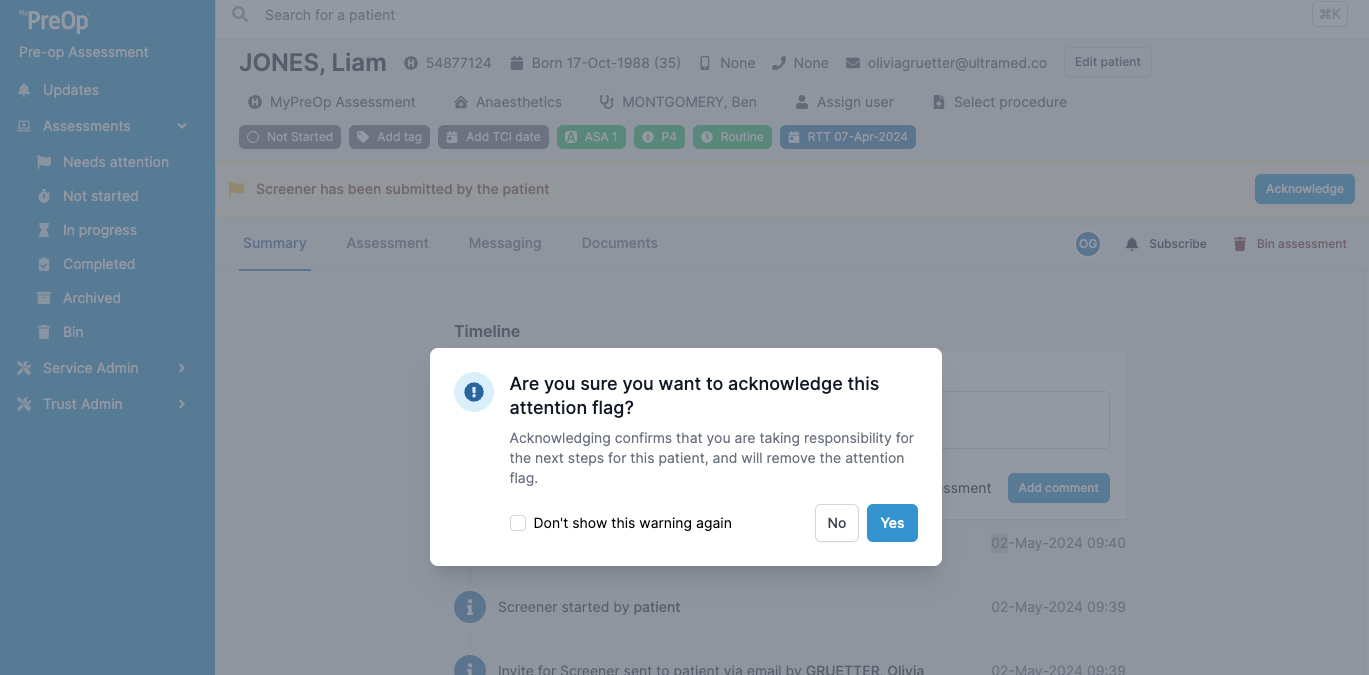
Viewing the Timeline
Who has access:
- Administrator and Clinical Staff: Full access
- Read Only and Limited Administrator: View-only access (cannot leave comments)
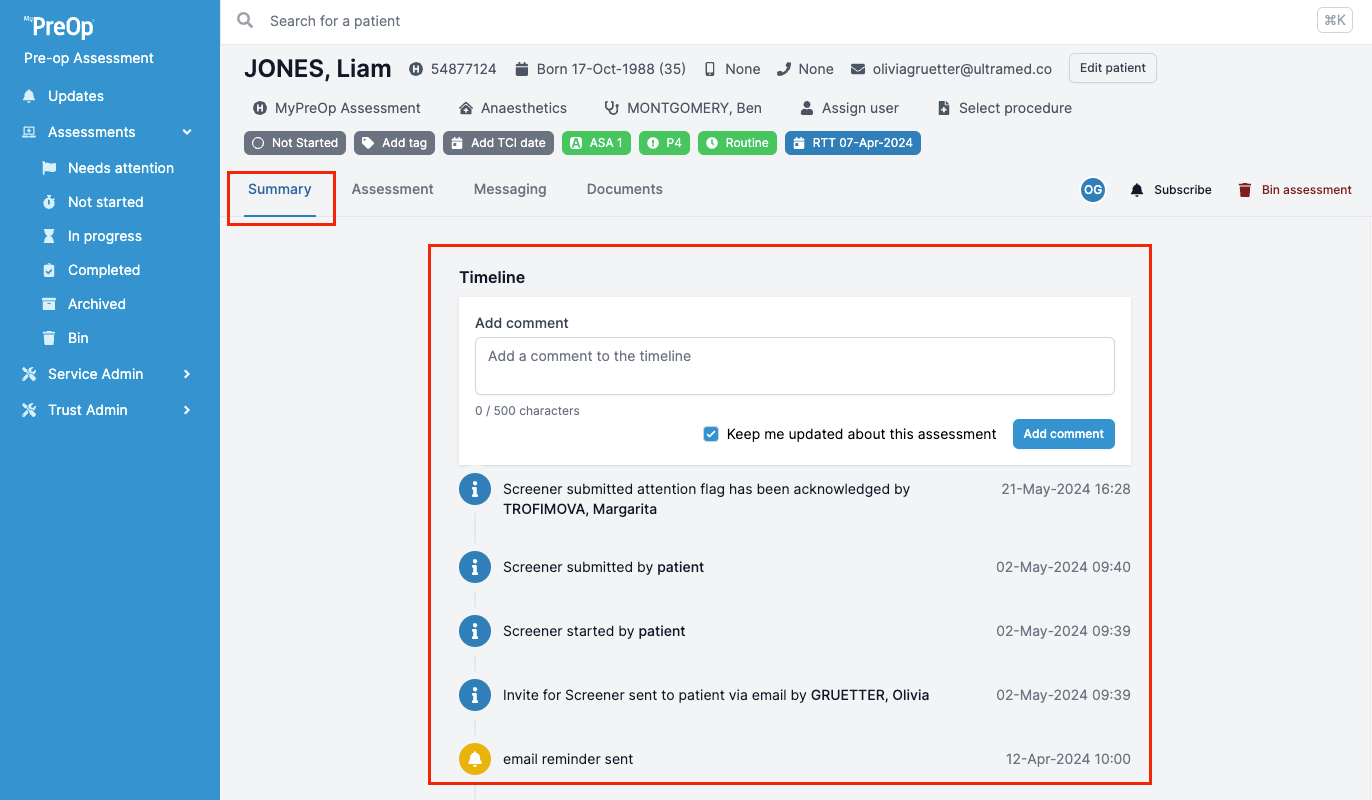
The Timeline is located in the Summary tab on the patient page. It provides a complete log of all actions taken on the assessment, including acknowledgements and changes. Administrators and clinical users can also leave comments here.
Subscribing to Assessment Notifications
Who has access:
All user levels
You can receive notifications about specific assessments by either:
- Clicking “Subscribe” on the patient page
- Assigning the assessment to yourself
Notifications appear in the "Updates" section (left-hand menu) for the following events:
- The assessment is assigned to you
- A new comment is added to the Timeline of a subscribed assessment
- A tag is changed on a subscribed assessment
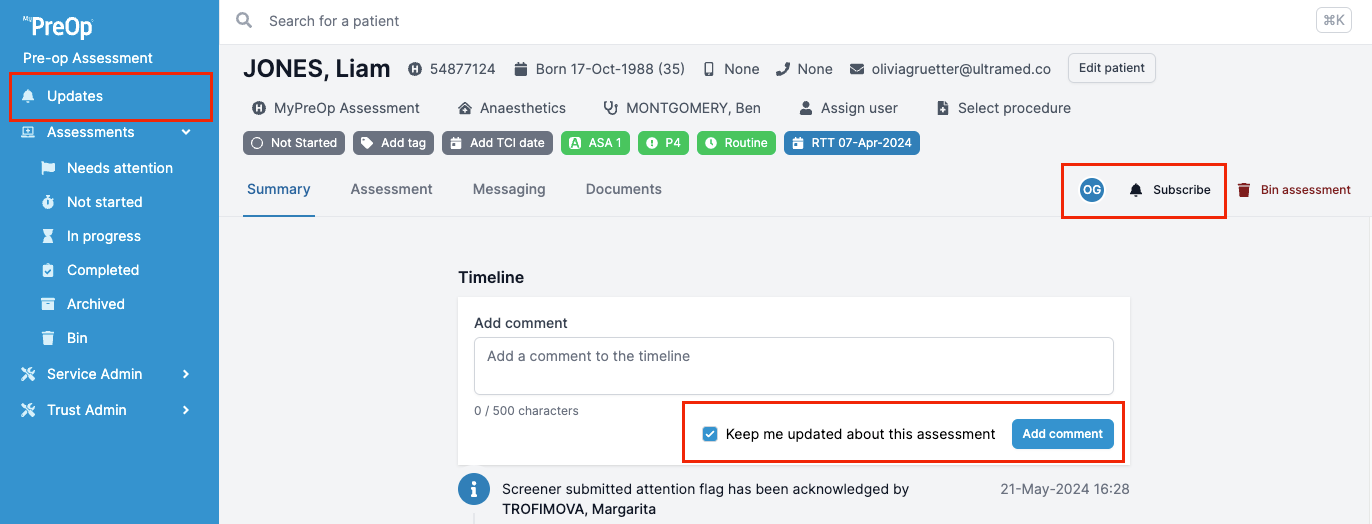
You can manage these notifications in the Updates settings.
Moving an Assessment to the Bin
Who has access:
Only users with Secondary Binner access level
To move an assessment to the Bin:
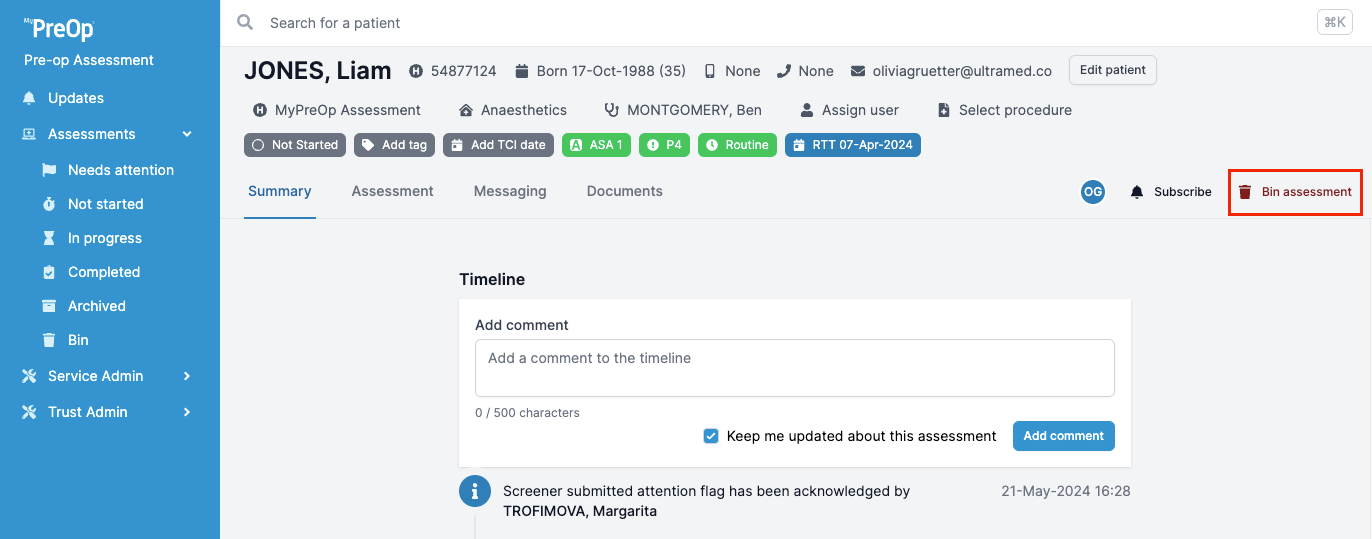
- Click “Bin assessment” on the right-hand side of the patient page
- You will be prompted to provide a reason for binning the assessment
- The assessment will then appear in the Bin folder
Important:
Once an assessment is moved to the Bin, the patient will no longer have access to it. This may cause confusion or distress, so this action should be taken with caution.
Note:
Due to individual portal configurations, some features may appear differently in your live portal.