
How to Send or Schedule a Message
In this guide, you will learn:
- How to send a message to a patient
- How to schedule a message
How to Send a Message to a Patient
Who has access:
- Clinical staff
- Administrator and Limited Administrator with secondary messenger access level
Steps:
- Go to the “Messaging” tab in the Clinical Portal
- Click “New message”.
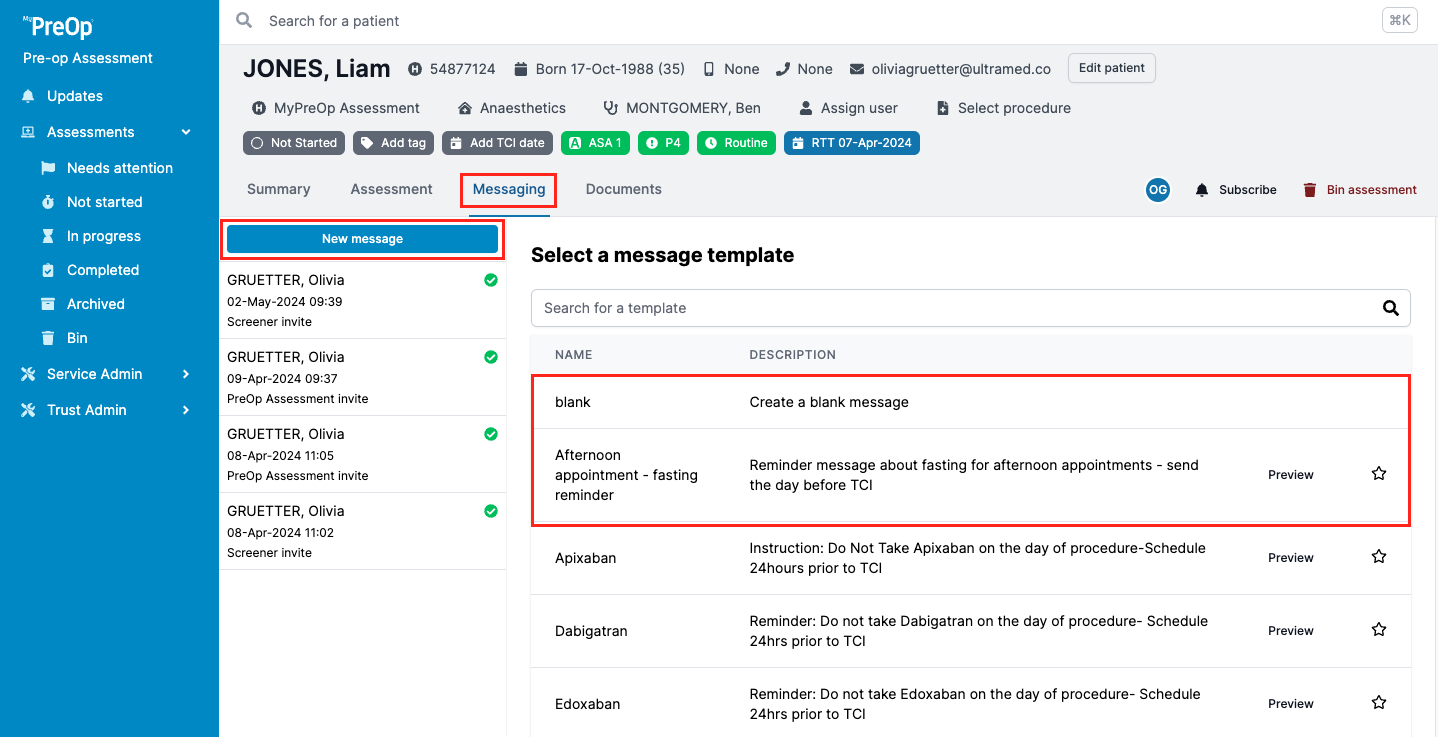
3. Choose either a blank message or select a template to use.
- If you select a template, the system will automatically pull patient information into placeholders.
- If any placeholder or patient contact details are missing, you will see an amber warning banner indicating an incomplete template.
4. Update the message details as needed.
5. Click “Send” to deliver the message immediately.
How to Schedule a Message
Who has access:
- Clinical staff
- Administrator and Limited Administrator with secondary messenger access level
Steps:
- Compose your message either by using a template or creating a new message.
- Instead of clicking Send, click the arrow on the right-hand side of the button.
- Select ‘Schedule send’ to choose a future date and time for sending the message.
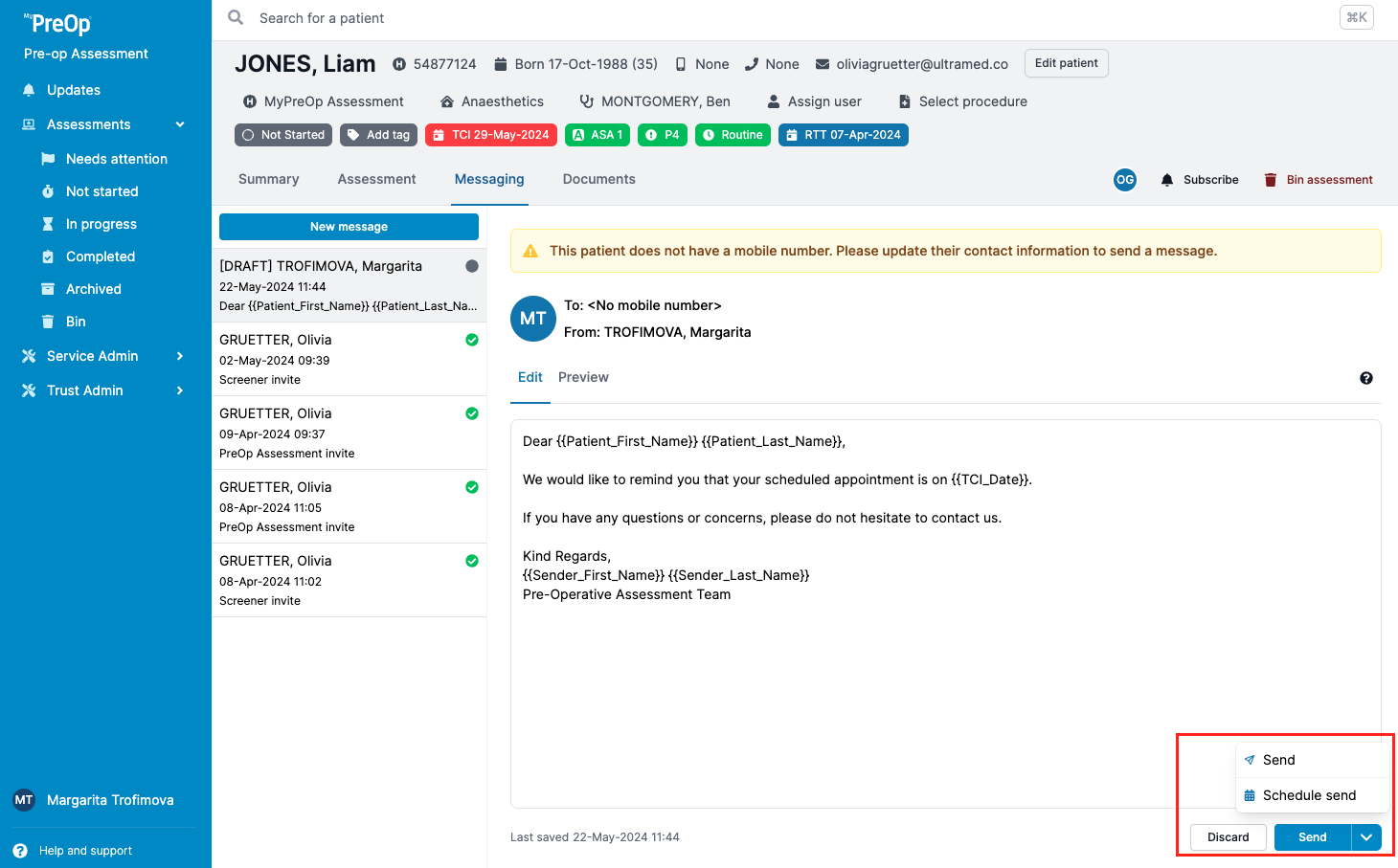
Ways to Schedule a Message
You can schedule messages in three ways:
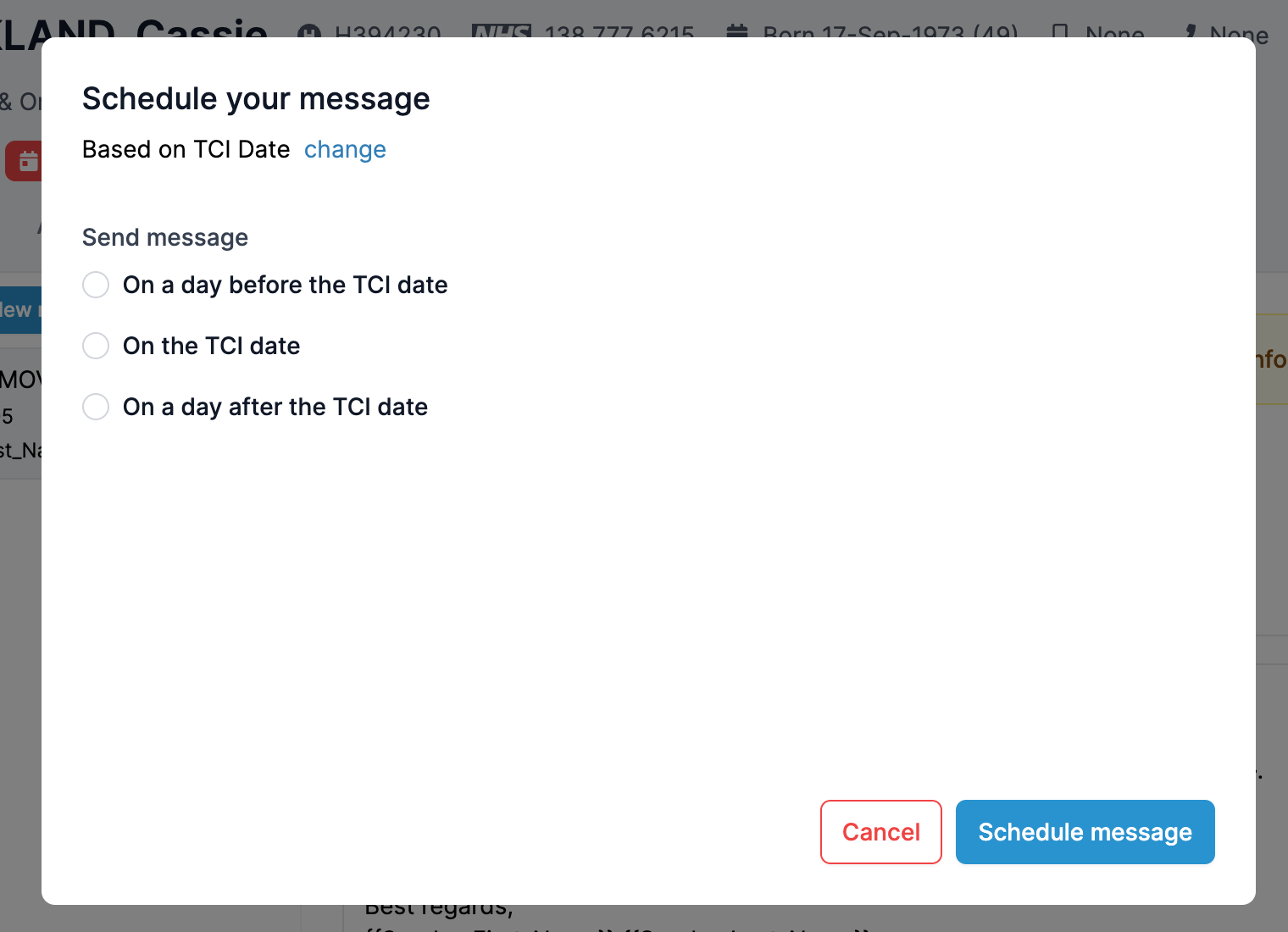
- By TCI Date
- Schedule to send on the TCI date, or a specific day before or after it.
- You can schedule even before a TCI date is added; scheduling will update automatically if the TCI date changes.
- Important: If multiple messages are scheduled before a TCI date and that date is updated to an earlier day, all those messages might be sent immediately.
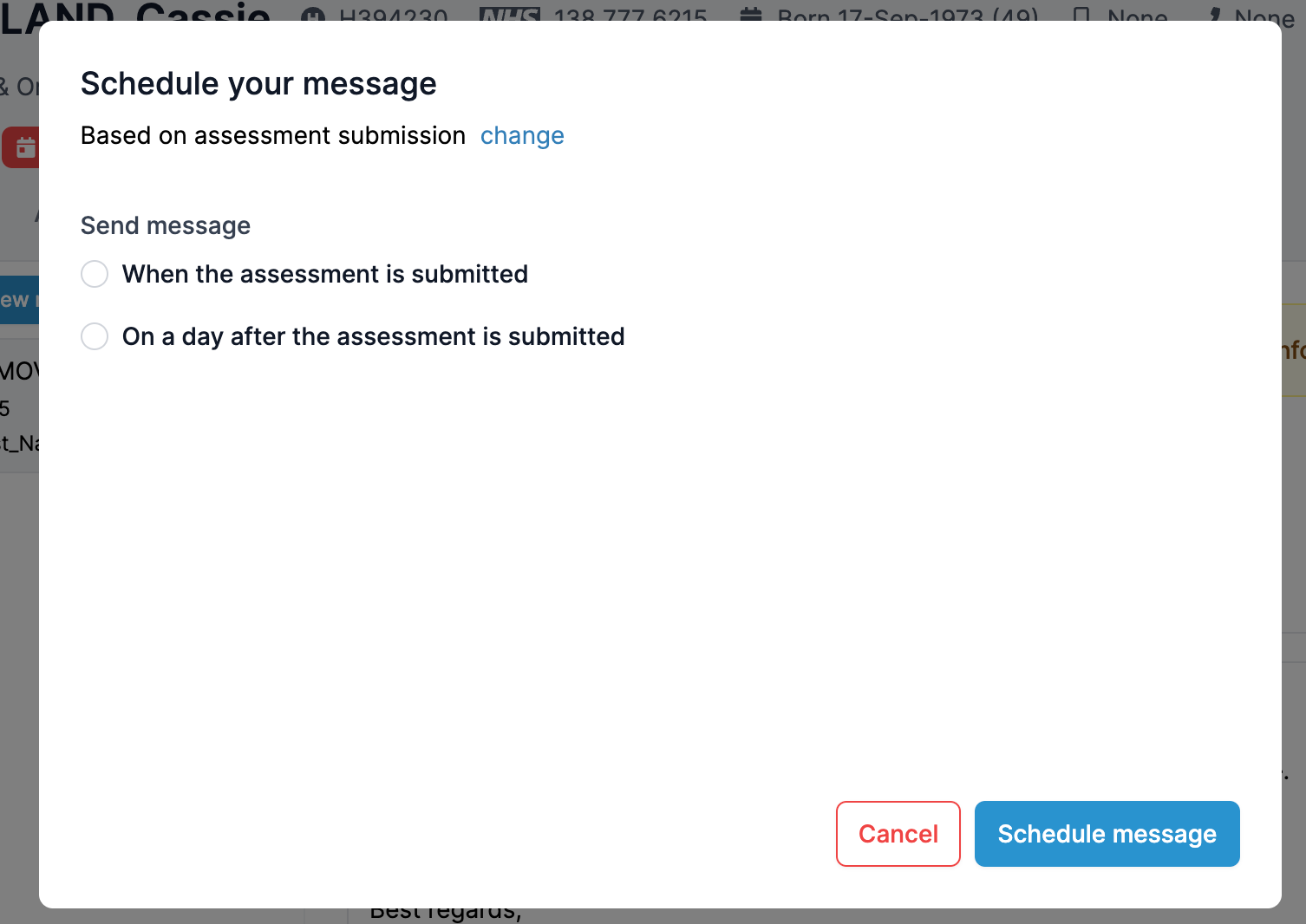
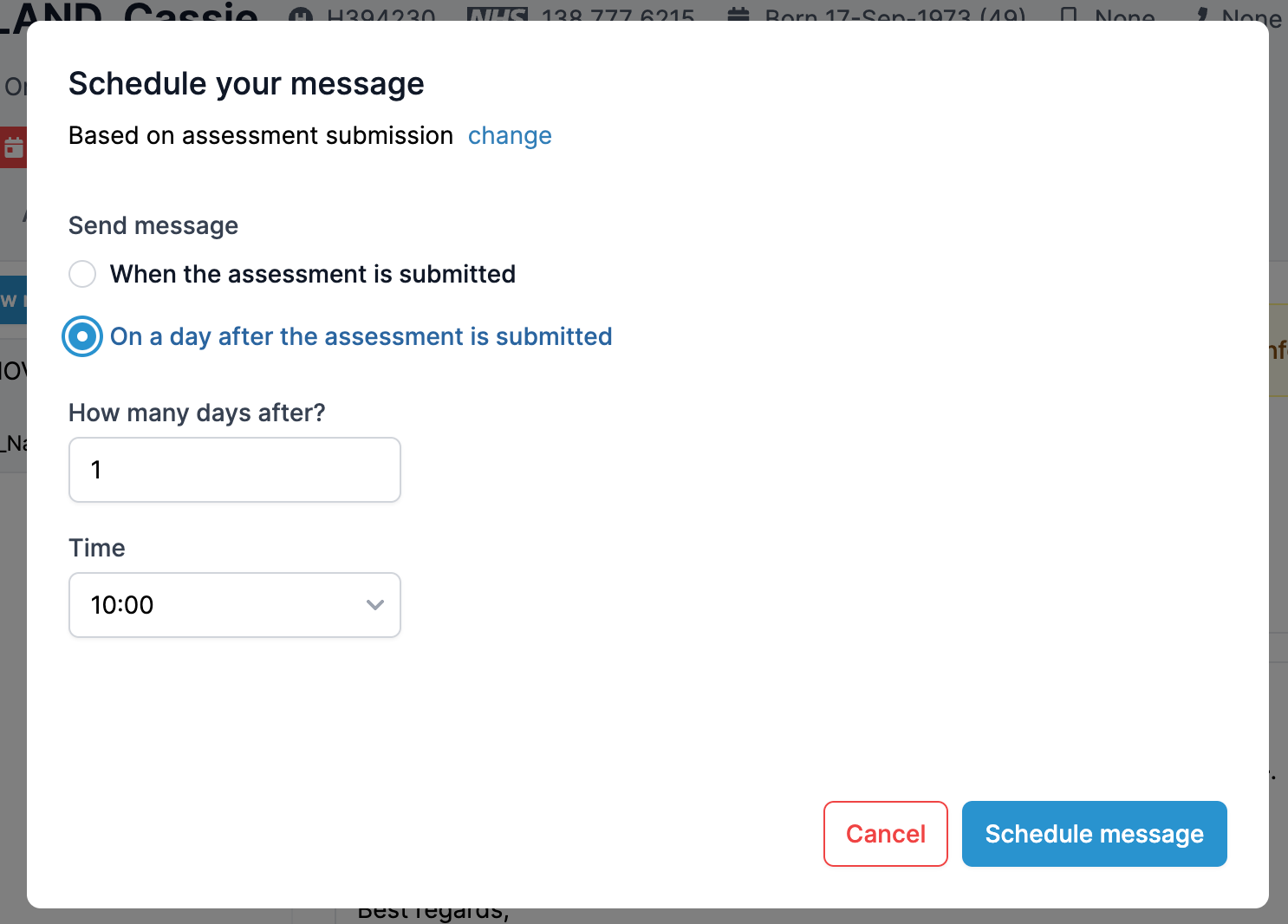
2. By Assessment Submission
- Schedule a message to send when a patient submits their assessment, or on a specific day after submission.
- You’ll be asked to specify the exact time or how many days after submission the message should be sent.
- Scheduled messages can be edited or unscheduled anytime before they are sent.
3. By Custom Date
- Schedule a message to be sent on any date and time you choose.
- Scheduled messages will appear in the message list and can be edited or unscheduled before sending.
Important Notes on Scheduling
- If your message contains placeholders (like TCI date) that are missing when the message is scheduled to send, the message will fail to send.
- To resend, you will need to create and send a new message.
- If a patient with scheduled messages is moved to the Bin, all their scheduled messages will be deactivated and not sent.
- If the patient is later restored from the Bin, the scheduled messages will be reactivated and sent as normal.
- Always check scheduled messages after restoring a patient to ensure relevance and remove outdated messages.
Please note:
Due to individual portal configurations, some screens or features may differ slightly in your live portal.