
How to View an Assessment
In this guide, you will learn how to:
- Open an assessment
- Understand multiple assessment forms and statuses
- Edit an existing form or send a new form to the patient
- How to identify and review changes made to questionnaires
- Use clinical notes and suggested tasks
How to Open an Assessment
Who has access:
- All users can open the Assessment tab
- Only Clinical Staff and Read Only users can view the actual assessment content
To open an assessment:
- Navigate to the patient page.
- Click on the Assessment tab
- The most recent assessment will appear on the right-hand side.

Assessment Forms and Statuses
Who has access:
All users
The portal allows to view all assessment forms and its statuses. These can include:
- Incomplete assessment form
- Complete assessment form
- Resubmitted assessment form
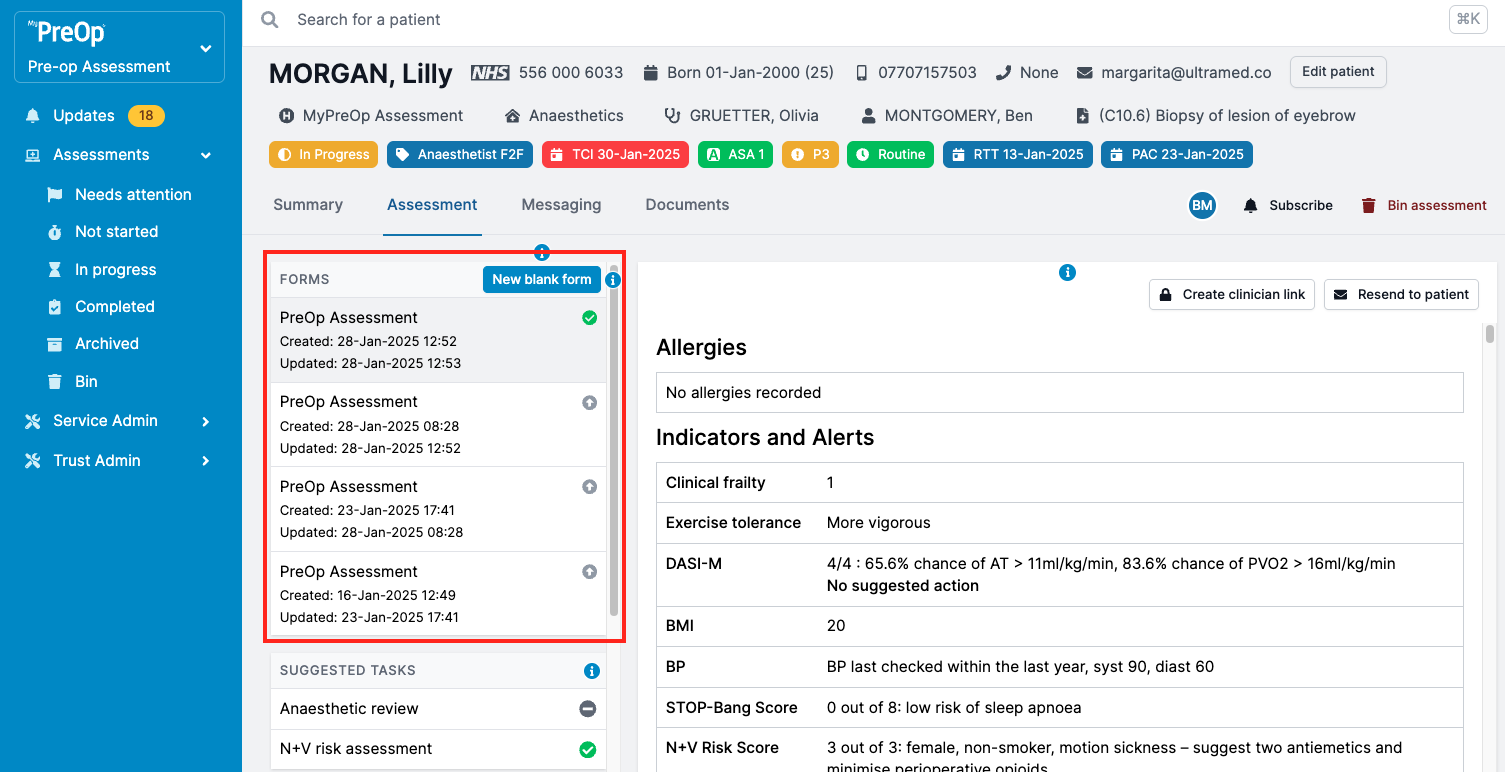
You’ll see the list of forms on the left-hand side of the Assessment tab. To view a form:
- Click on its name.
- The amber banner at the top will show key information such as form type, status, and more (e.g. if the assessment is outdated and a newer version is available).
- Patient responses will update in real time.
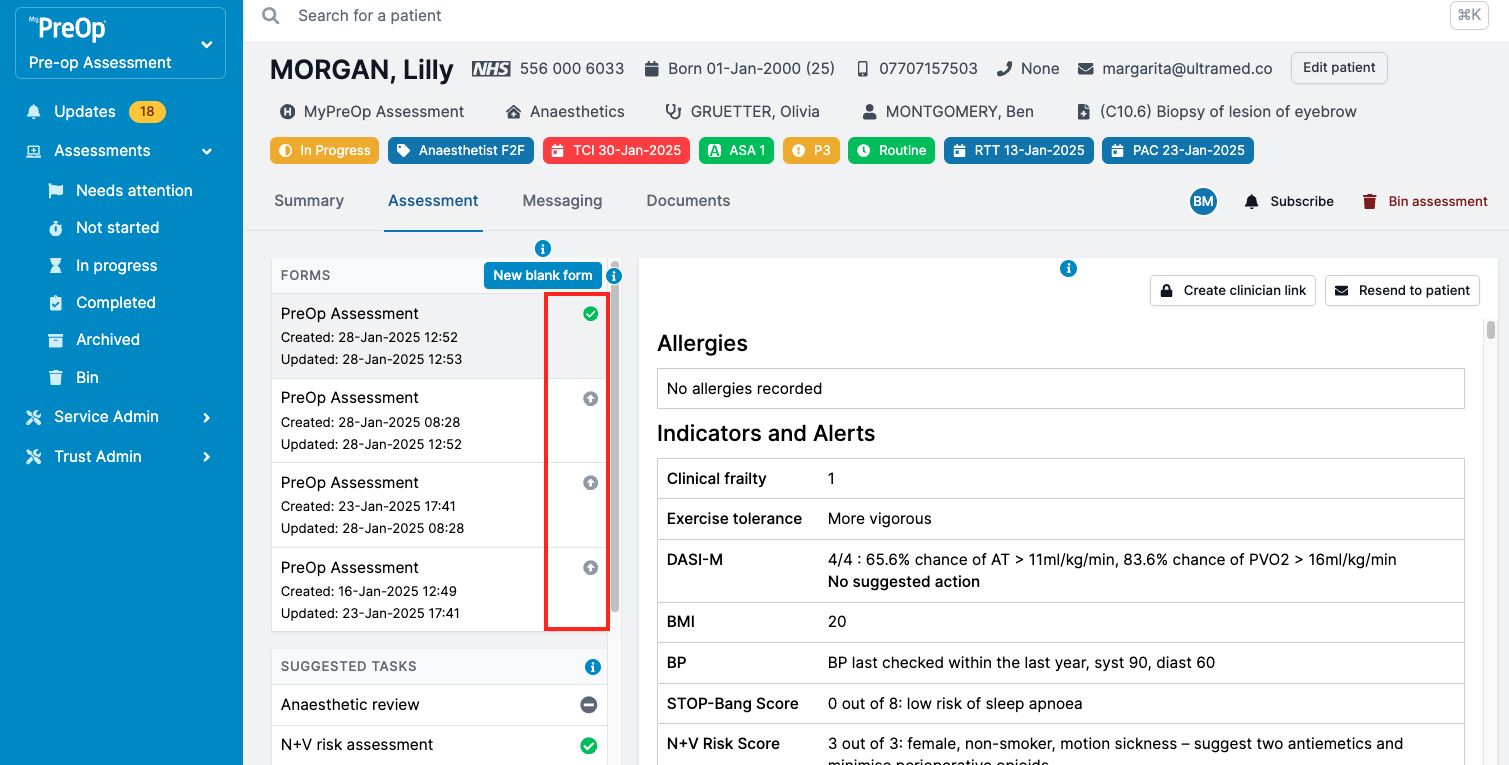
Assessment status icons:
- Green – Form submitted
- Amber – Form empty or in progress
- Grey – Newer version of the form available
- Red – Invite failed to send
- Clear – Invite has not been sent
How to Edit an Existing Form or Send a New One
Who has access:
All users apart from Read Only
Editing an existing assessment:
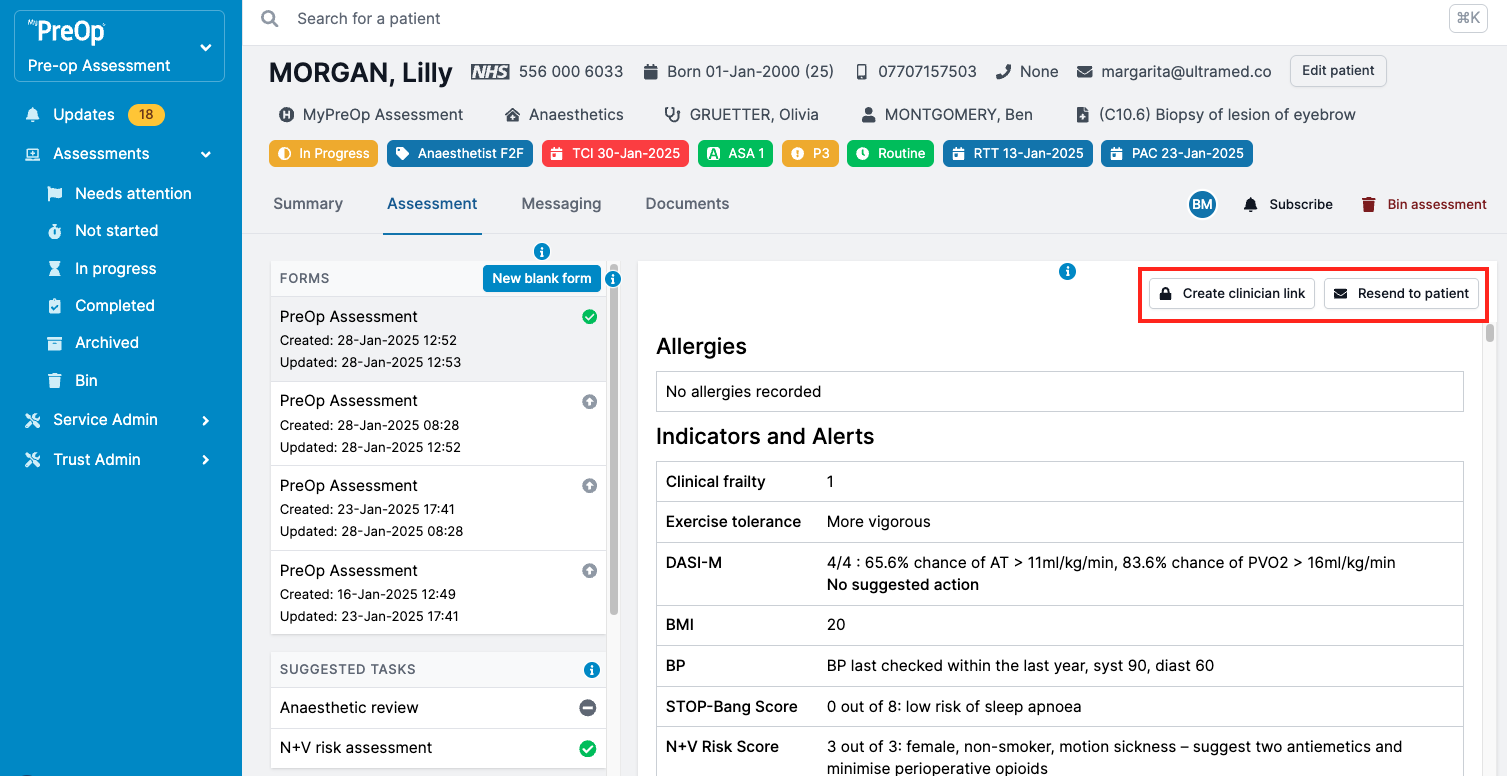
Use the buttons above the form:
- Create clinician link – Allows a clinician to access and edit the patient’s existing answer
- Resend to patient – Sends a new invite so the patient can update their form
- Cancel – Cancels the current invite, making the previous version of the form active again
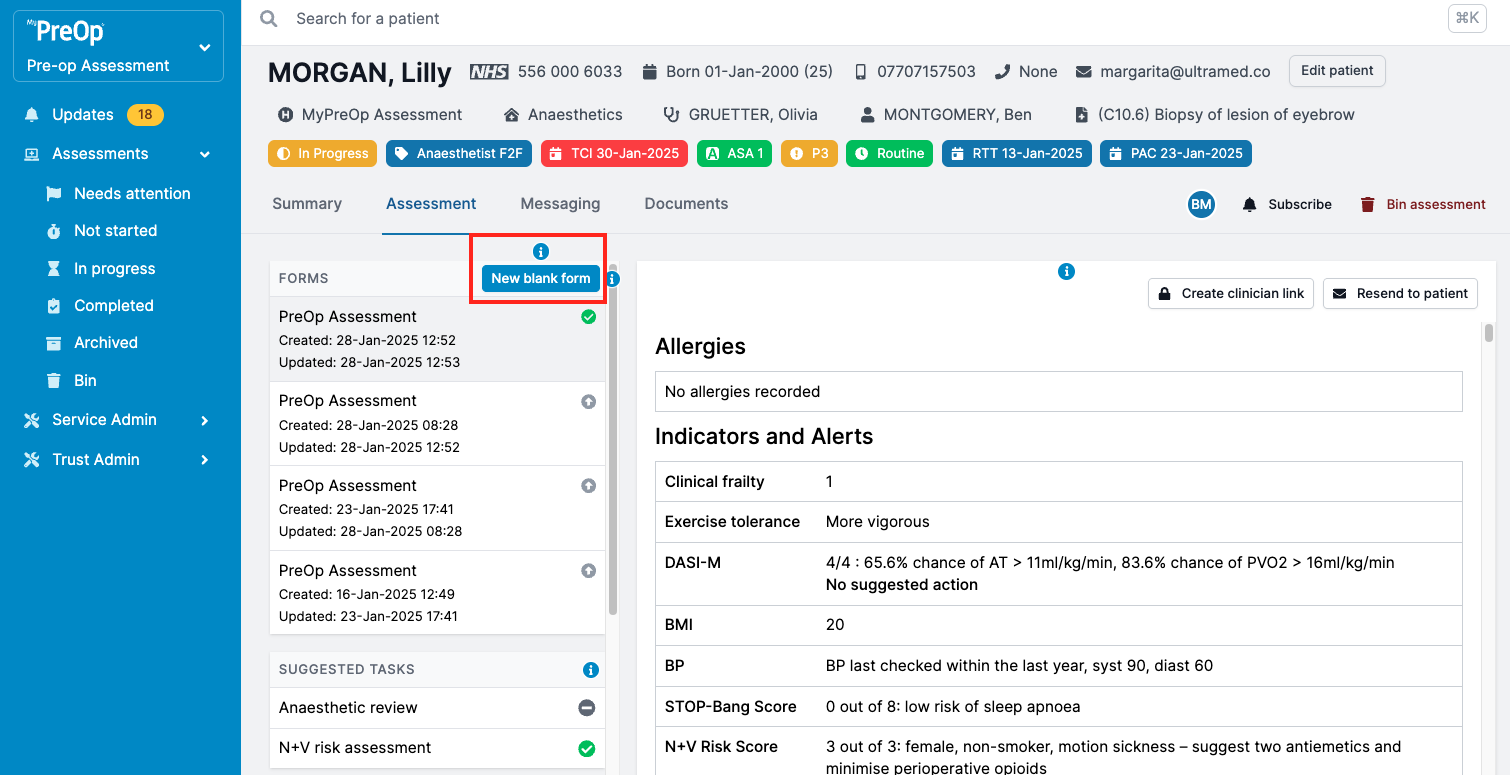
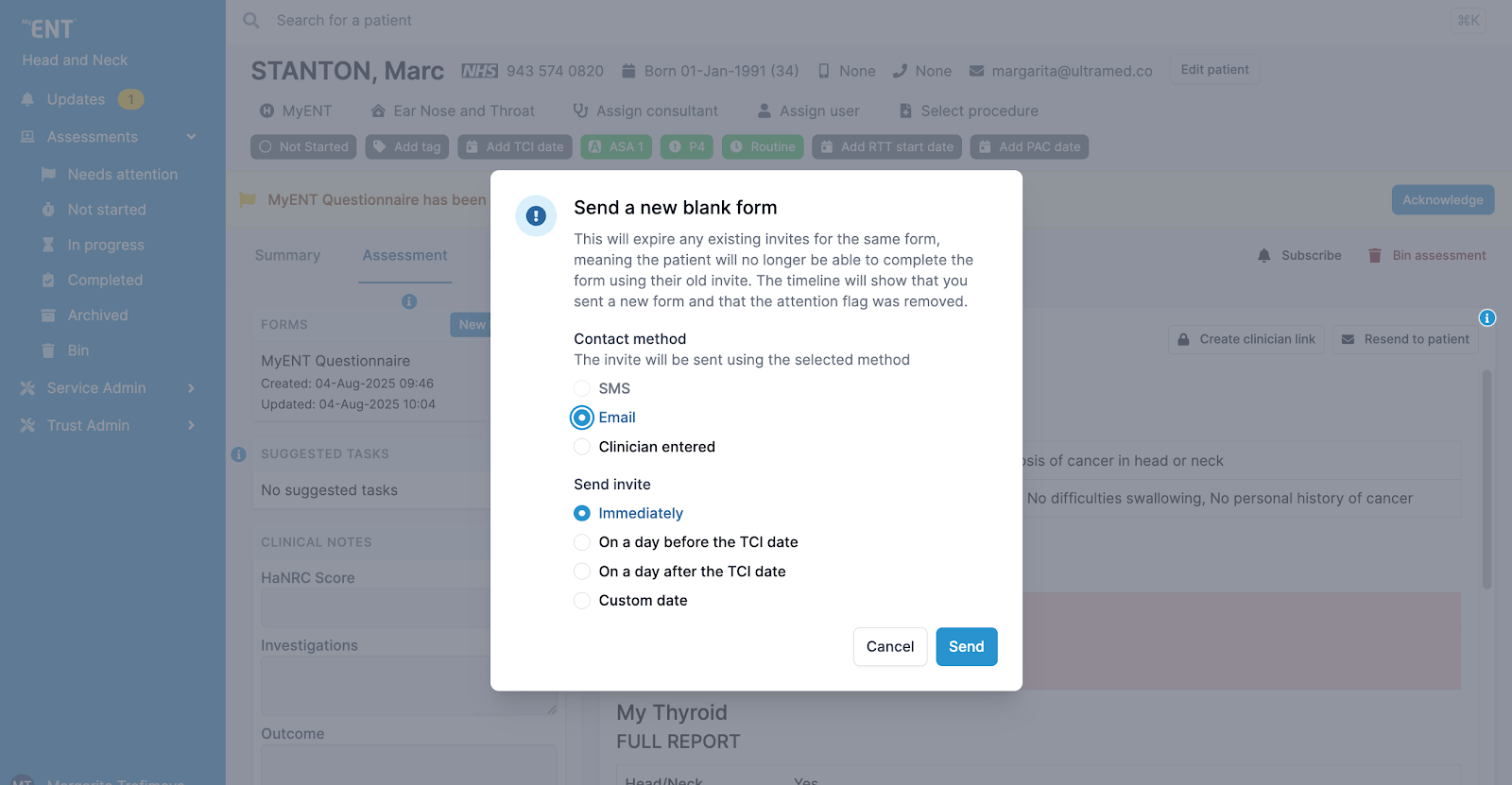
Creating a new blank form:
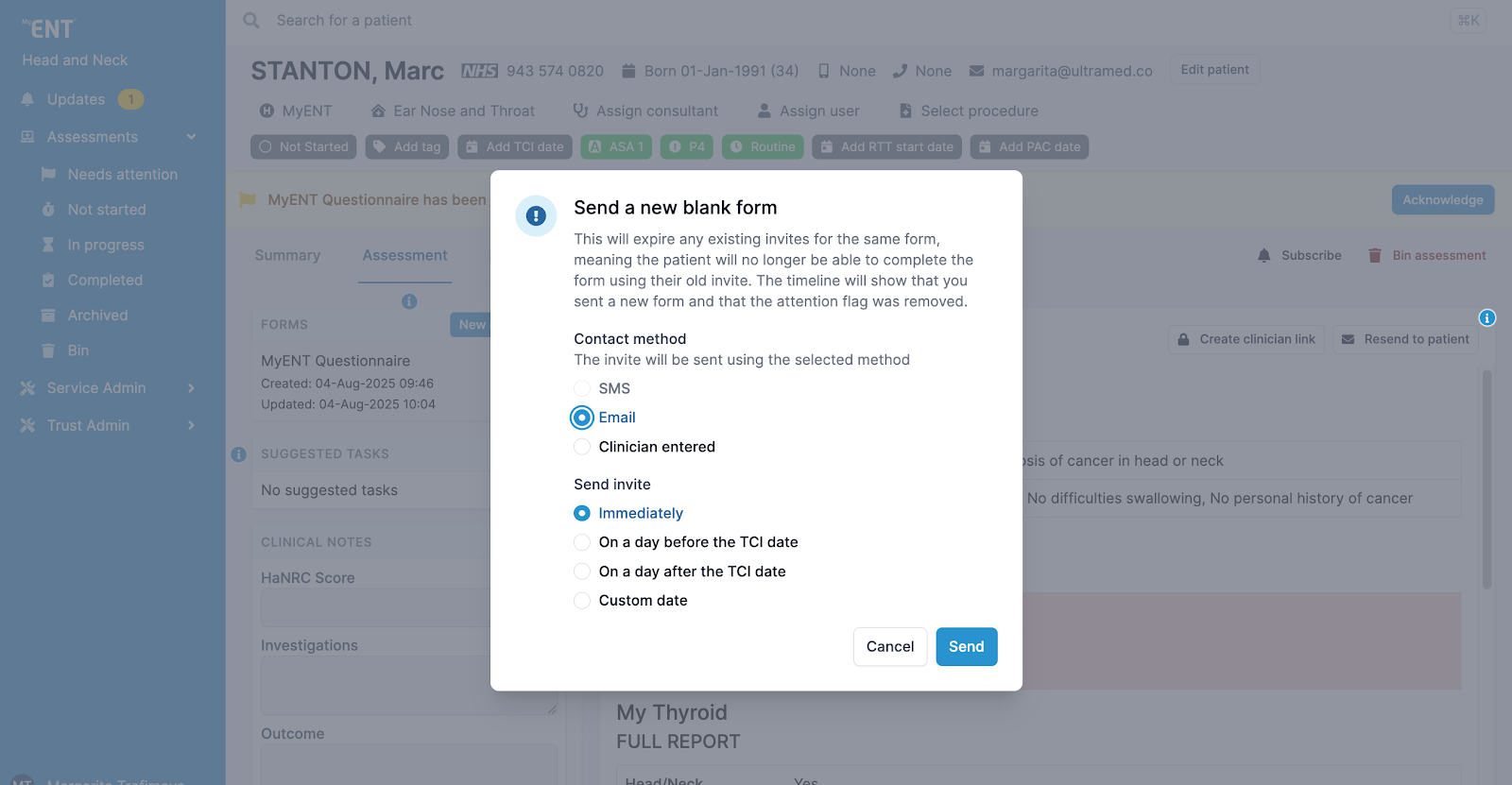
Click "New blank form" to send a fresh form with no prior data.
You will be able to:
- Set the contact method (Email, SMS, or Clinician entered)
- Specify when the invite should be sent
Note: Creating a new form will:
- Expire any existing invites for the same form type
- Prevent the patient from accessing the previous version
- Clear any attention flags related to the previous form
- Leave an entry in the Timeline
To complete a form on behalf of a patient, choose “Clinician entered” as the contact method.
How to identify and review changes made to questionnaires
Who has access:
Clinical Staff and Read Only users
Updated questionnaires automatically highlight any questions that have changed since the last submission. Changed questions are marked with a change indicator and highlighted border:
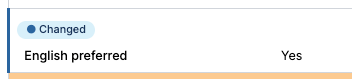
Change indicator applies whether an answer was:
- Added
- Updated
- Removed
To view an earlier response use the form list on the left-hand side.
Note:
- Some sections are highlighted as a whole, rather than showing changes to individual items. For example, if any medication is added, removed, or updated, the entire Medications section will be highlighted.

- Changes are always compared to the most recent previous form, not the original. For example, if the patient has three submissions, the changes in the third(most recent) form will appear against the second form, and changes in the second form will highlight changes against the first form. This ensures you always see what has changed since the last review.
Additional information:
- Change highlights appear only after a questionnaire has been submitted more than once.
- Highlights are visible in the clinician portal only and do not appear in PDF exports.
Clinical Notes and Suggested Tasks
Who has access:
Clinical Staff and Read Only users
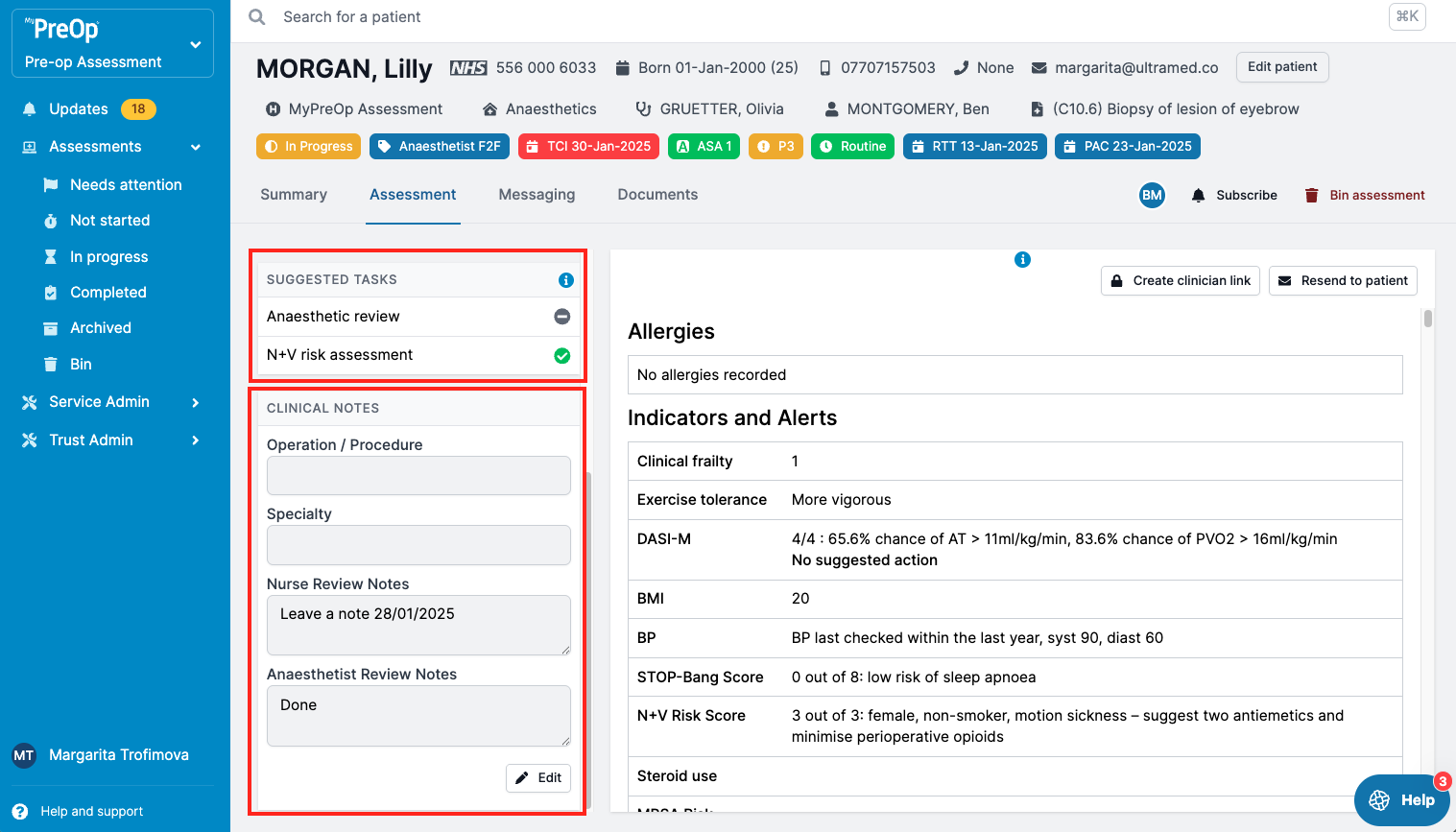
In the Assessment tab, you will find two important tools on the left-hand panel:
1. Suggested Tasks:
- Click on any task
- Make necessary changes and add notes
- Click ‘Save’ to confirm
2. Clinical Notes:
- Scroll down to view
- Click ‘Edit’ to update
- Click ‘Save’ when complete
Clinical Notes History
Who has access:
Clinical Staff and Read Only users
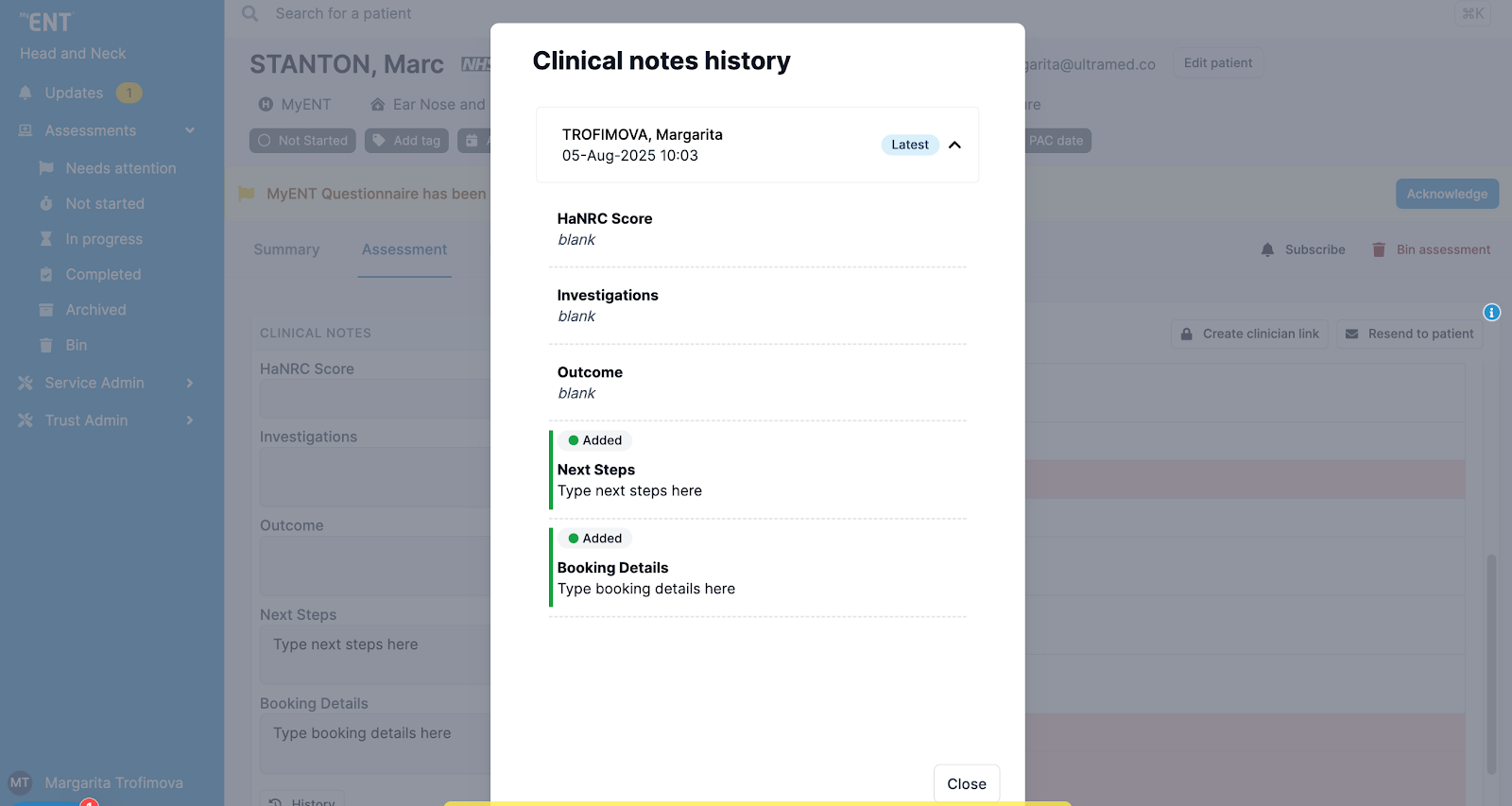
Click the “History” button (bottom left of the Clinical Notes section) to:
- View a timeline of edits
- See who made each change
- Expand individual entries for detailed change logs
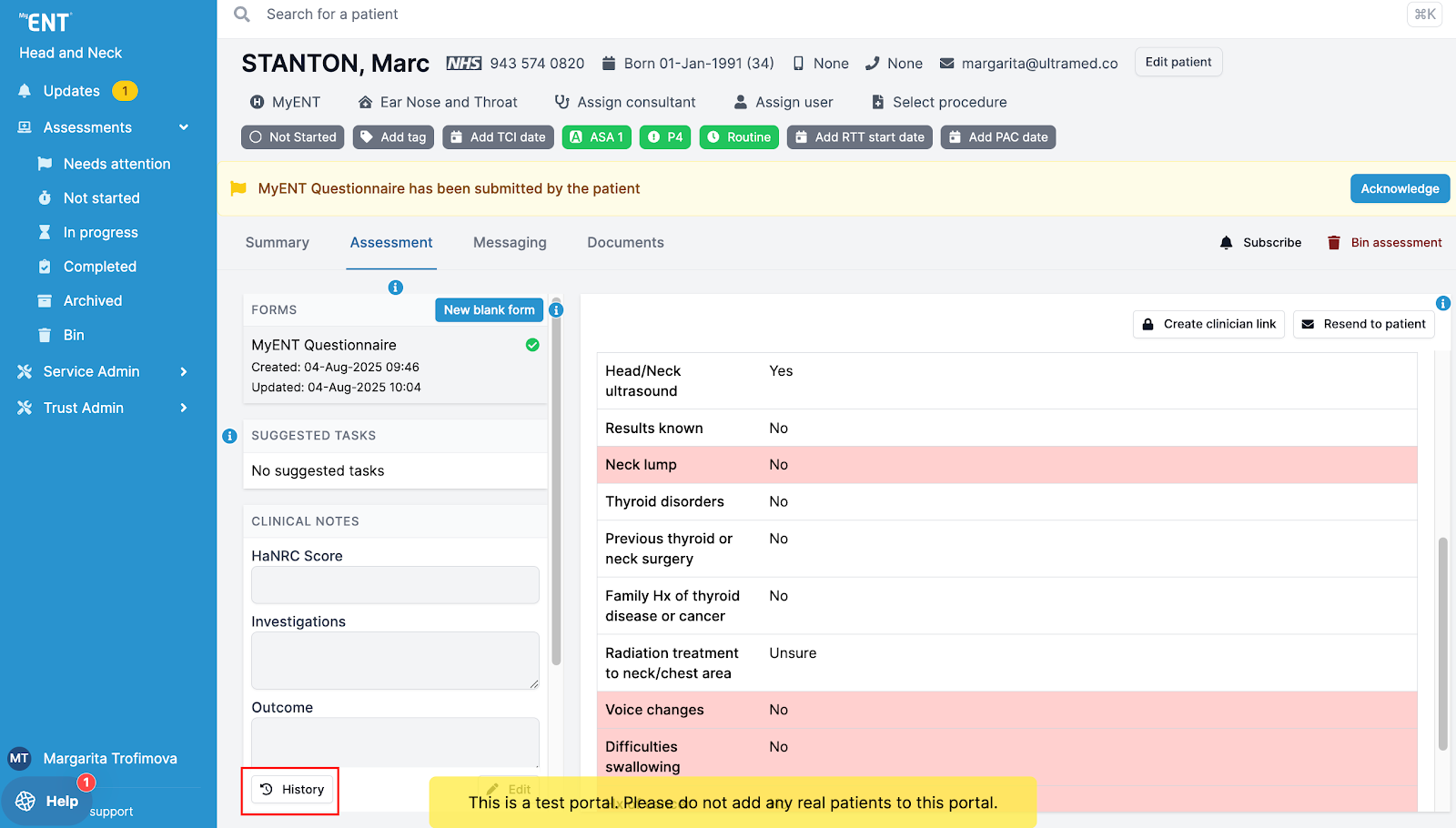
Note:
History tracking is only available for assessments created after 10th February 2025.
Multiple Editors Warning for Clinical Notes
Who has access:
Clinical Staff and Read Only users
When multiple users edit the Clinical Notes at the same time, the system will warn you before saving.
You can:
- Choose to continue editing, or
- Cancel your changes
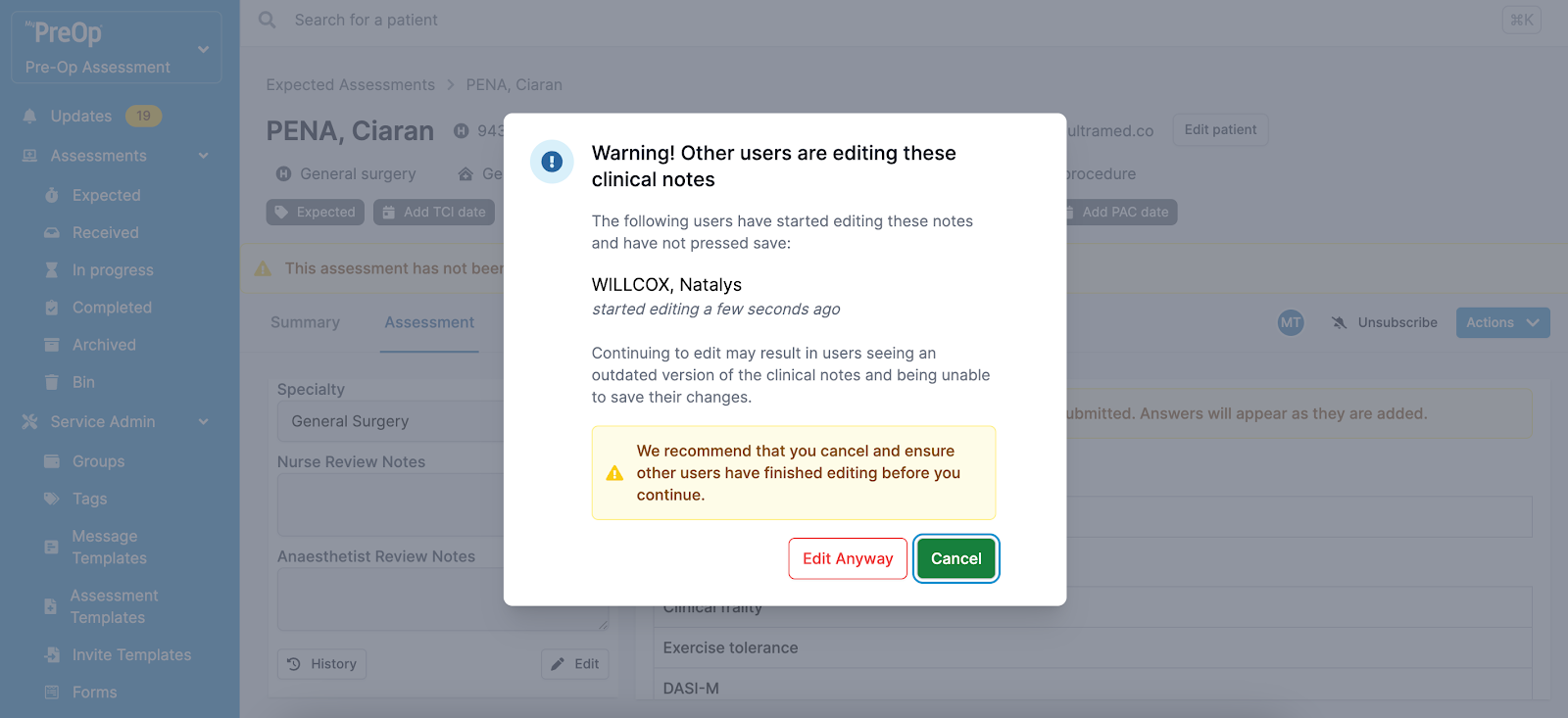
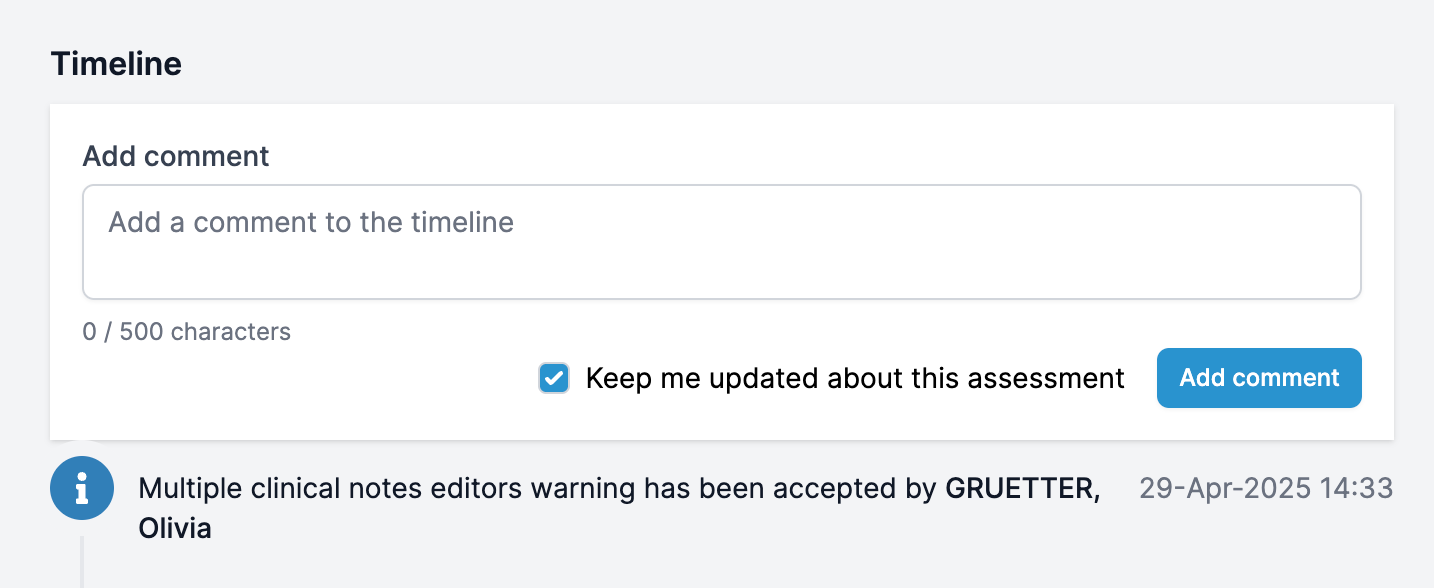
Your decision will be recorded in the Timeline.
Continuing to edit may cause conflicts—other users may see outdated content and be unable to save their own updates.
Note: Portal configurations may vary slightly between organisations. Some features may appear differently in your live environment.