
How to Generate an In-Person Code
In this guide, you will learn:
- How to generate an in-person code
- When to use an in-person code vs. a clinician link
Who has access:
All access levels apart from Read Only
Overview
For patients attending in-person clinics, you can generate an in-person code that allows them to complete their assessment on:
- Their own device, or
- A device provided by hospital staff
This is designed to support self-completion by the patient while they are on-site.
Steps to Generate an In-Person Code:
- Open the patient's assessment.
- Click the “Actions” button.
- Select “Resend to patient”.
- Choose the option: “In-Person code”.
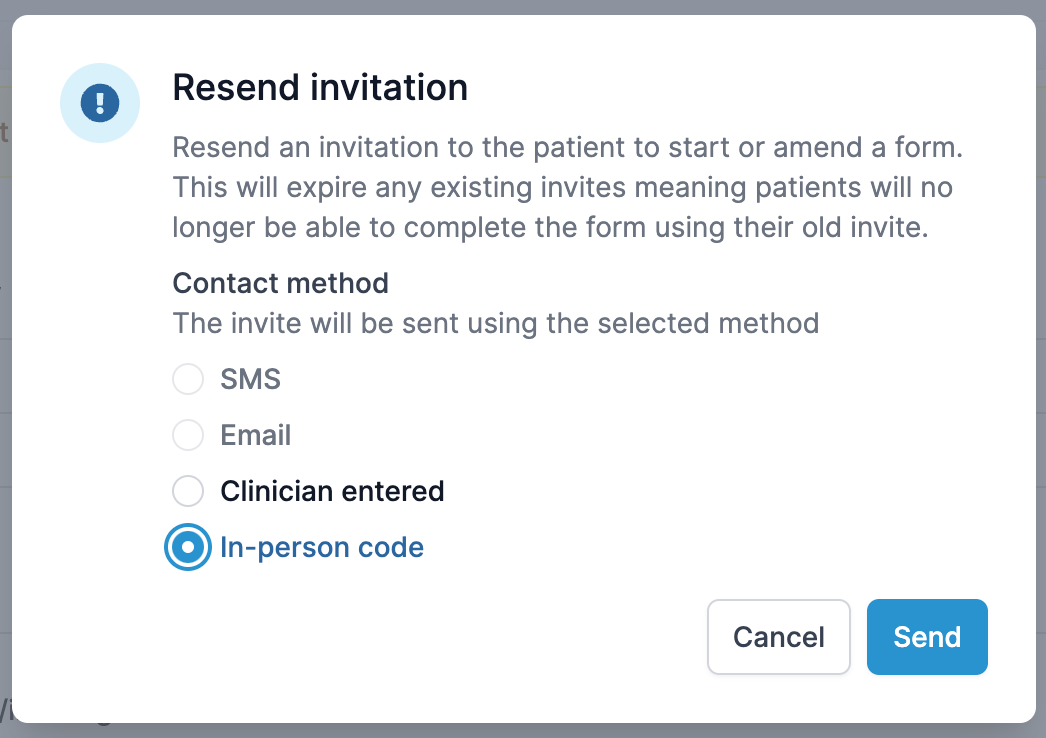
You will now see:
- A 6-character code
- A QR code
How the Patient Uses the Code:
- Patient visits this link on their device: https://patient.ultramed.app/
- They either:
- Scan the QR code, or
- Manually enter the code
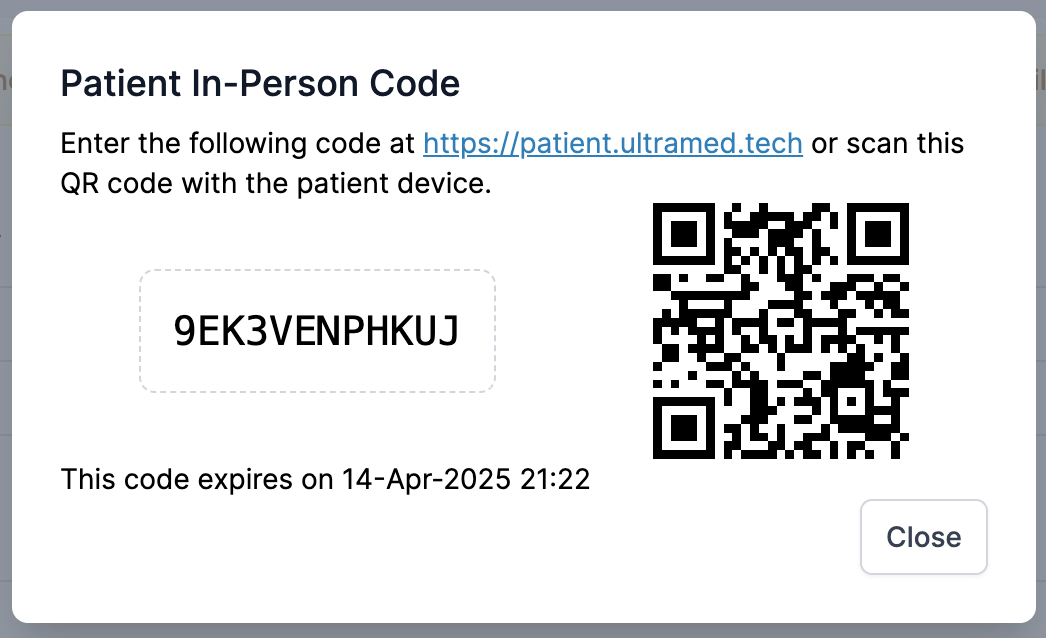
This gives them access to their online pre-assessment.
Important Notes:
Audit Trail: Any answers submitted using an in-person code are recorded as being completed by the patient.
Do not use it for clinician-led assessments (e.g., telephone assessments or when a clinician is inputting responses on behalf of a patient). Instead, use the “Clinician Link” to ensure proper attribution and audit trail.
System Availability
If you don’t yet see this feature in your portal, don’t worry — it will become available once your portal is updated.