
How to assist with login issues
Troubleshooting Login and Access Issues
If a user cannot access the platform, follow the steps below.
Step 1: Check Whether the User Exists
- Navigate to Users in the Clinical Portal.
- Use the search bar to find the user.
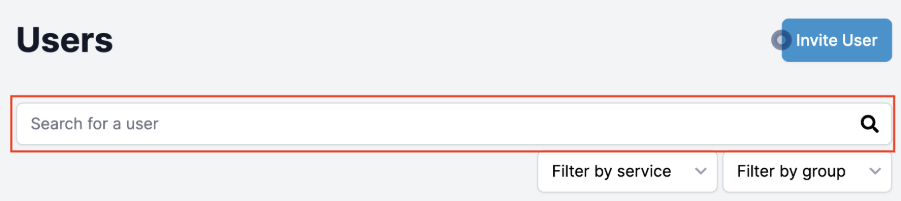
User not found
The user has not yet been added to the system.
Follow the Adding Users section above to create a new account.
User found
Check the user's account status.
Status: Active (Green)
An active account should be able to log in.
If the user cannot access the platform:
- Ask them to reset their password.
- Go to the platform login page.
- Select Reset Password.
- Enter the user's email address.
- Click Send.
If your organisation uses Single Sign-On (SSO), password resets may not apply. In this case, ask the user to contact their local IT team.

Status: Invited (Amber)
User hasn’t accepted the invitation. Advise the user to accept the invitation in their inbox. You can send a new invitation if the user is unable to locate the original one.
To resend the invitation:
- Locate the user in the Users list.
- Select the More Actions menu (three dots).
- Click Resend Invitation.
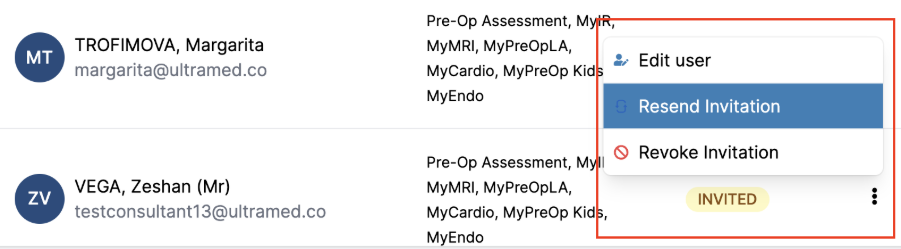
Status: Expired (Red)
Invitations automatically expire after 7 days if they are not accepted.
To resend the invitation:
- Locate the user in the Users list.
- Select the More Actions menu (three dots).
- Click Resend Invitation.
The user will be able to access the platform once they accept the new invitation.
User Still Cannot Log In
If resending the invitation does not resolve the issue:
- Open the More Actions menu (three dots).
- Select Edit Details.
- Check the user's email address for any errors or typos.
- Confirm that the email account is active.
- Save any changes.
- Resend the invitation.
The user should be able to log in after accepting the updated invitation.

Still Need Help?
If the issue persists after completing the steps above, contact [email protected] for further assistance.